Advanced Report Components
Custom Table
-
Use case: Custom table
-
Usage steps:
- Select custom table, click OK
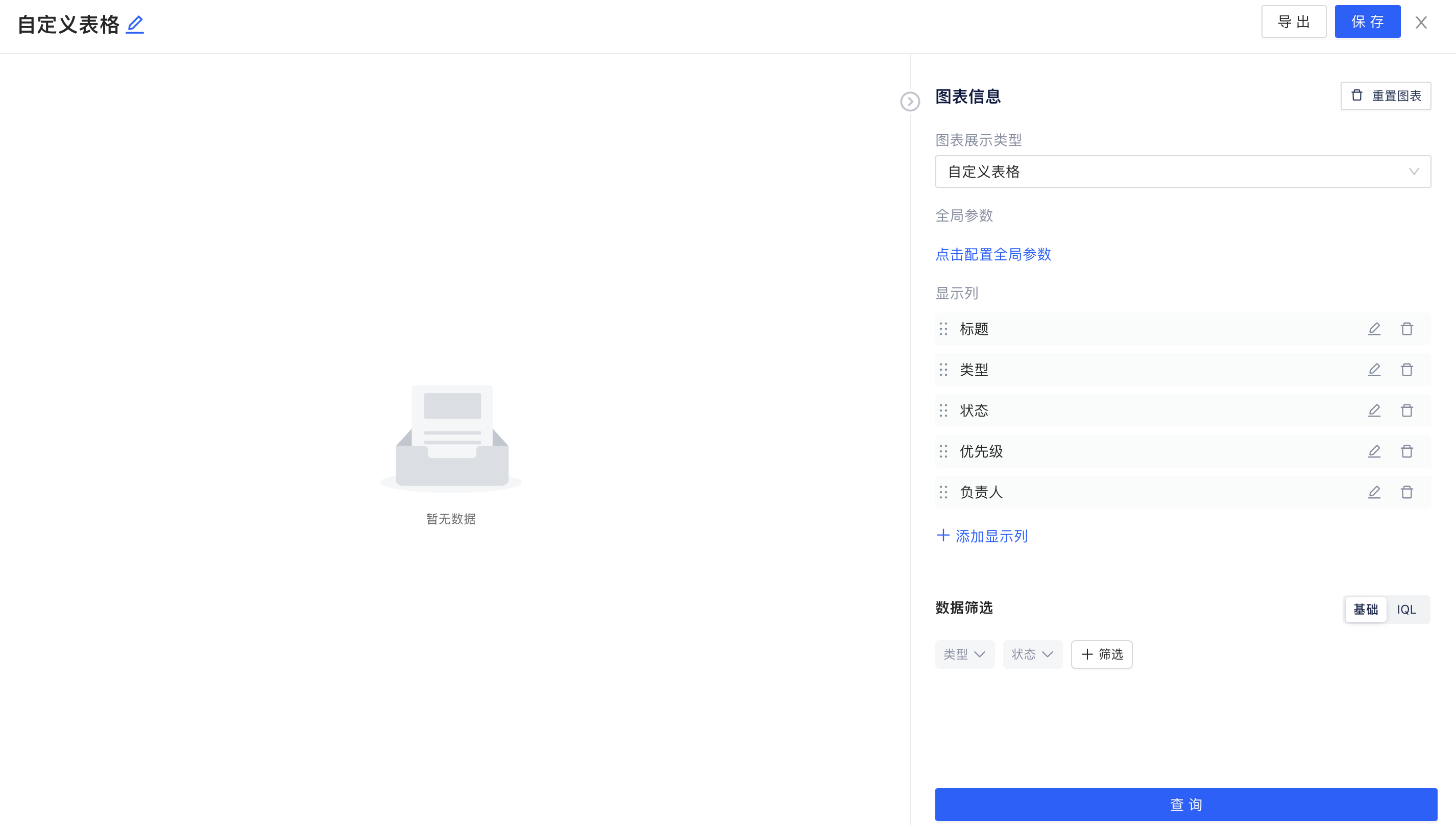
- Configure global parameters, display columns, filter rules, and data filtering as needed
- Click Query
- Click Save in the upper right corner and name the component
Example:
Statistical Period
-
Use case: Statistical period
-
Usage steps:
- Select statistical period, click OK
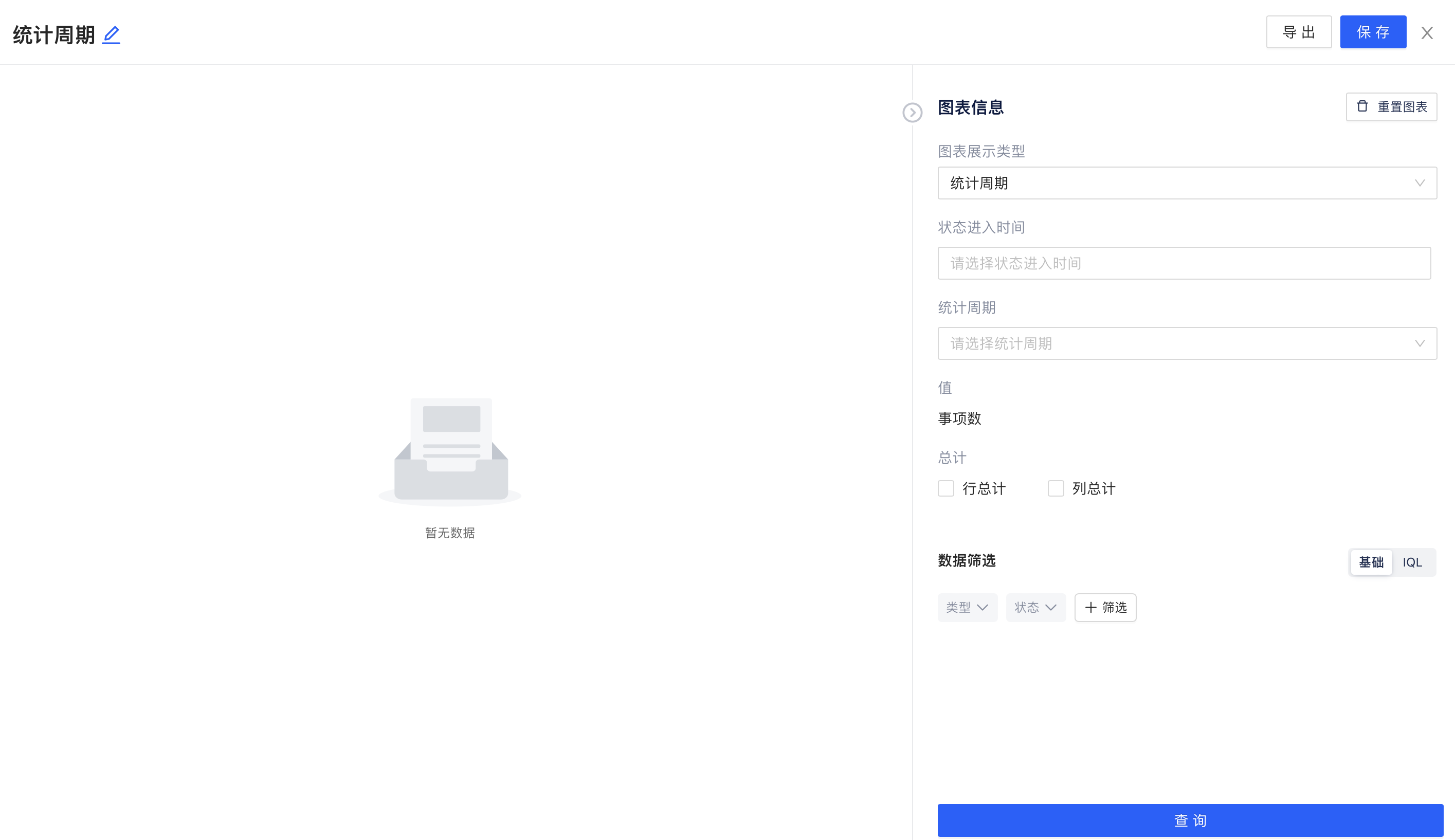
- Configure status entry time and statistical period as needed
- Select row totals and column totals as needed
- Configure filter rules and data filtering as needed
- Click Query
- Click Save in the upper right corner and name the component
Example:
Custom Table (Basic Data)
-
Use case: Custom table (basic data)
-
Usage steps:
- Select custom table (basic data), click OK
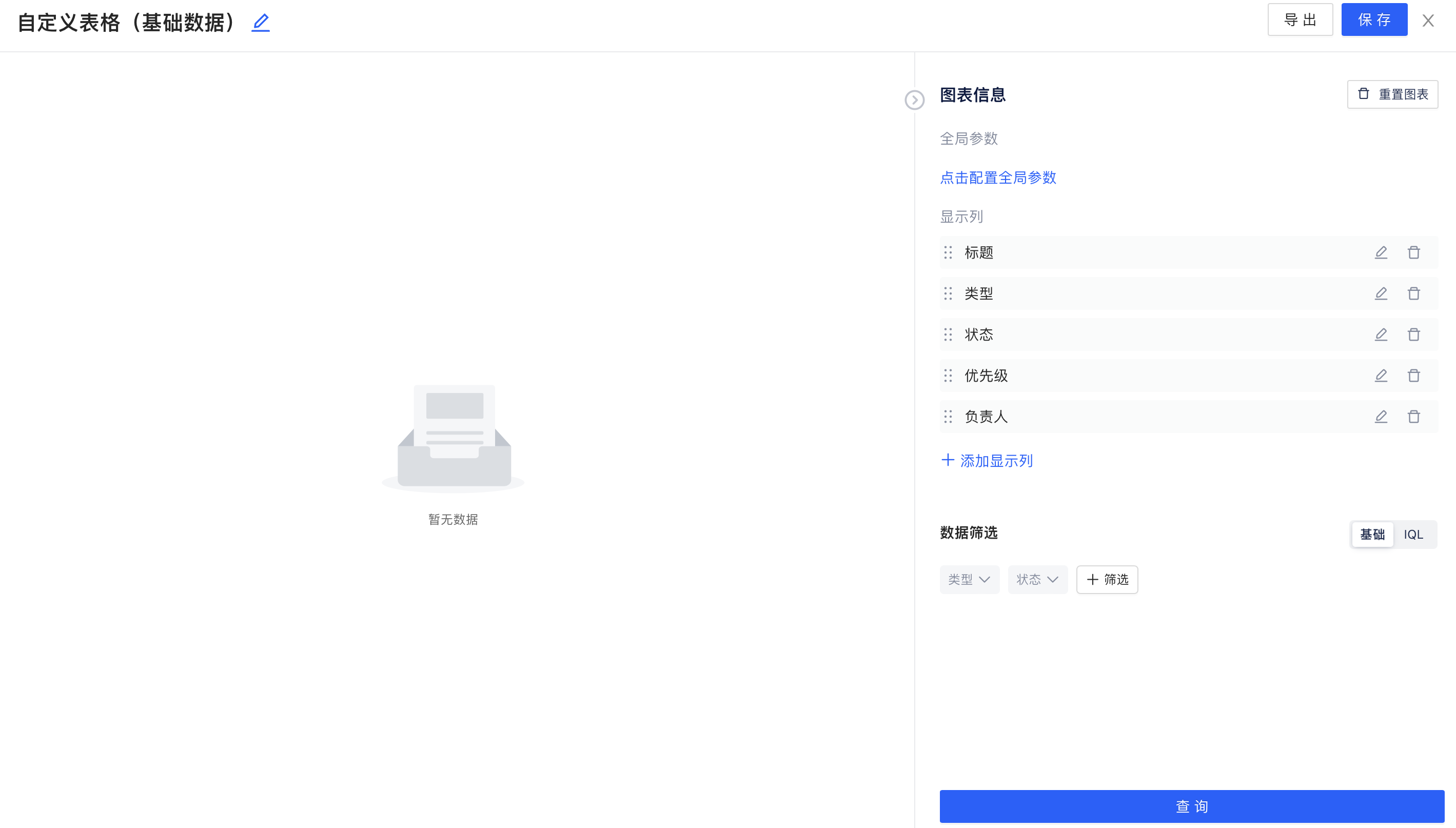
- Configure global parameters, display columns, filter rules, and data filtering as needed
- Click Query
- Click Save in the upper right corner and name the component
Example:
Custom Table (Statistical Data)
-
Use case: Custom table (statistical data)
-
Usage steps:
- Select custom table (statistical data), click OK
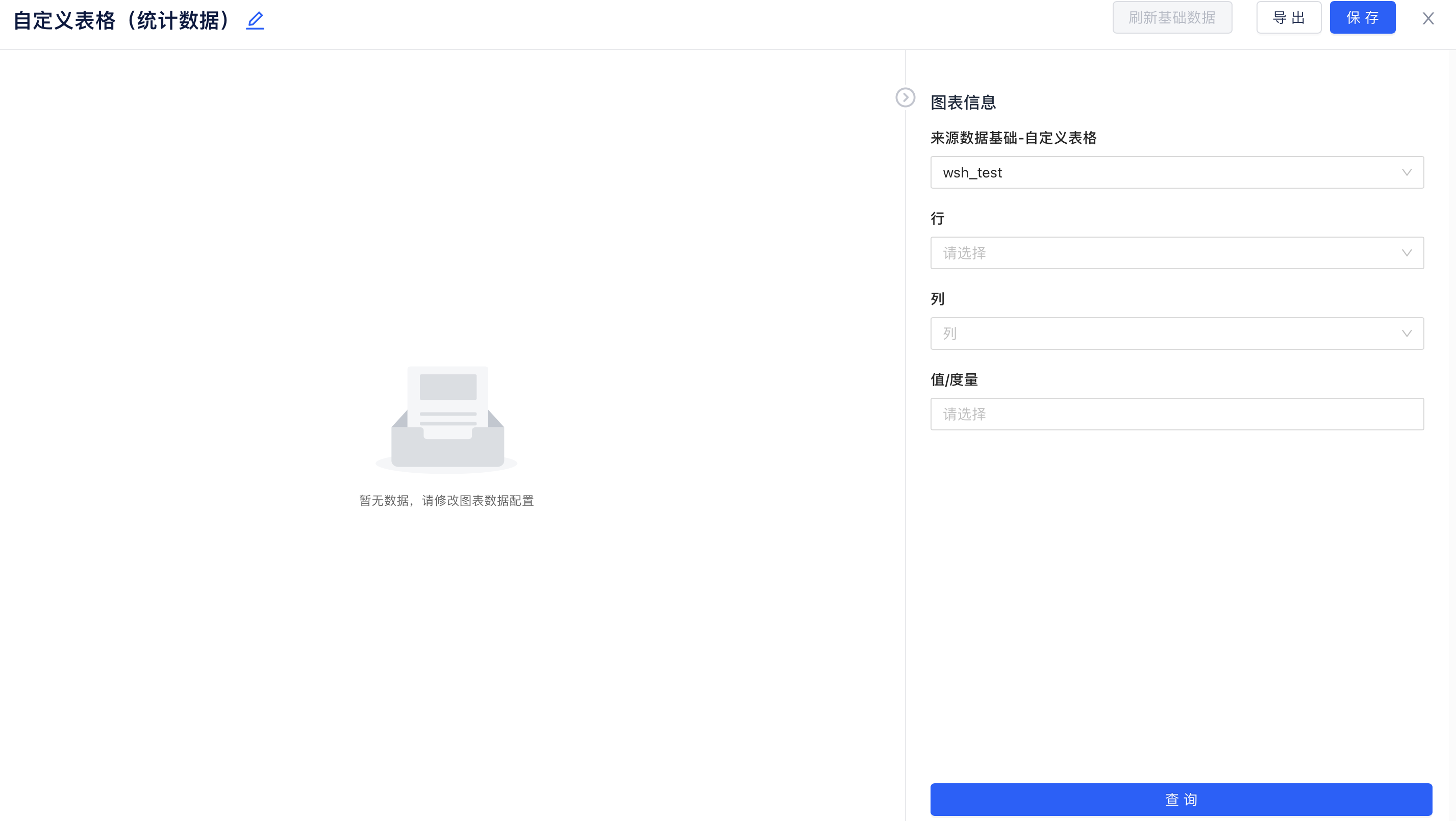
- Configure source data foundation as needed
- Configure rows, columns, values/measures as needed
- Click Query
- Click Save in the upper right corner and name the component
Example: