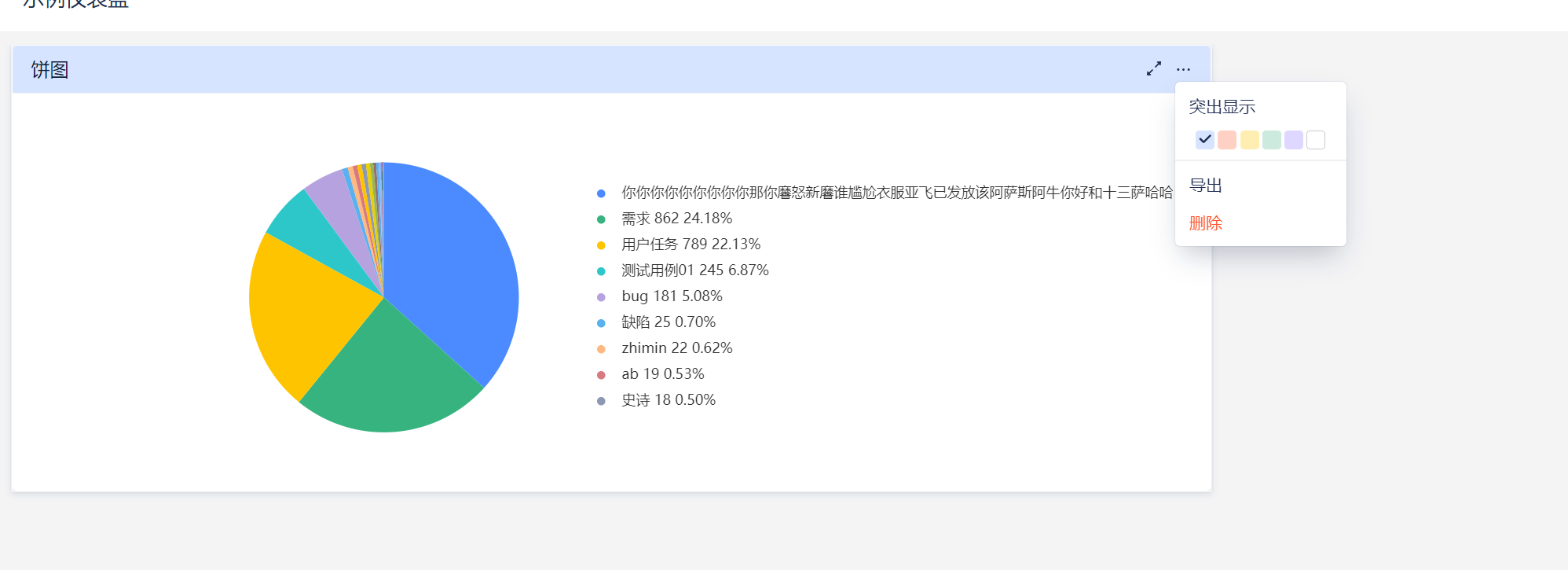
Dashboard Basic Capabilities
You can access the dashboard functionality page through the left sidebar shortcut dashboard and workspace report statistics, where you can create and manage multiple dashboards for different dimensional measurement needs.
When entering the dashboard, there is a default dashboard by default. You can create reports based on this dashboard or create new dashboards.
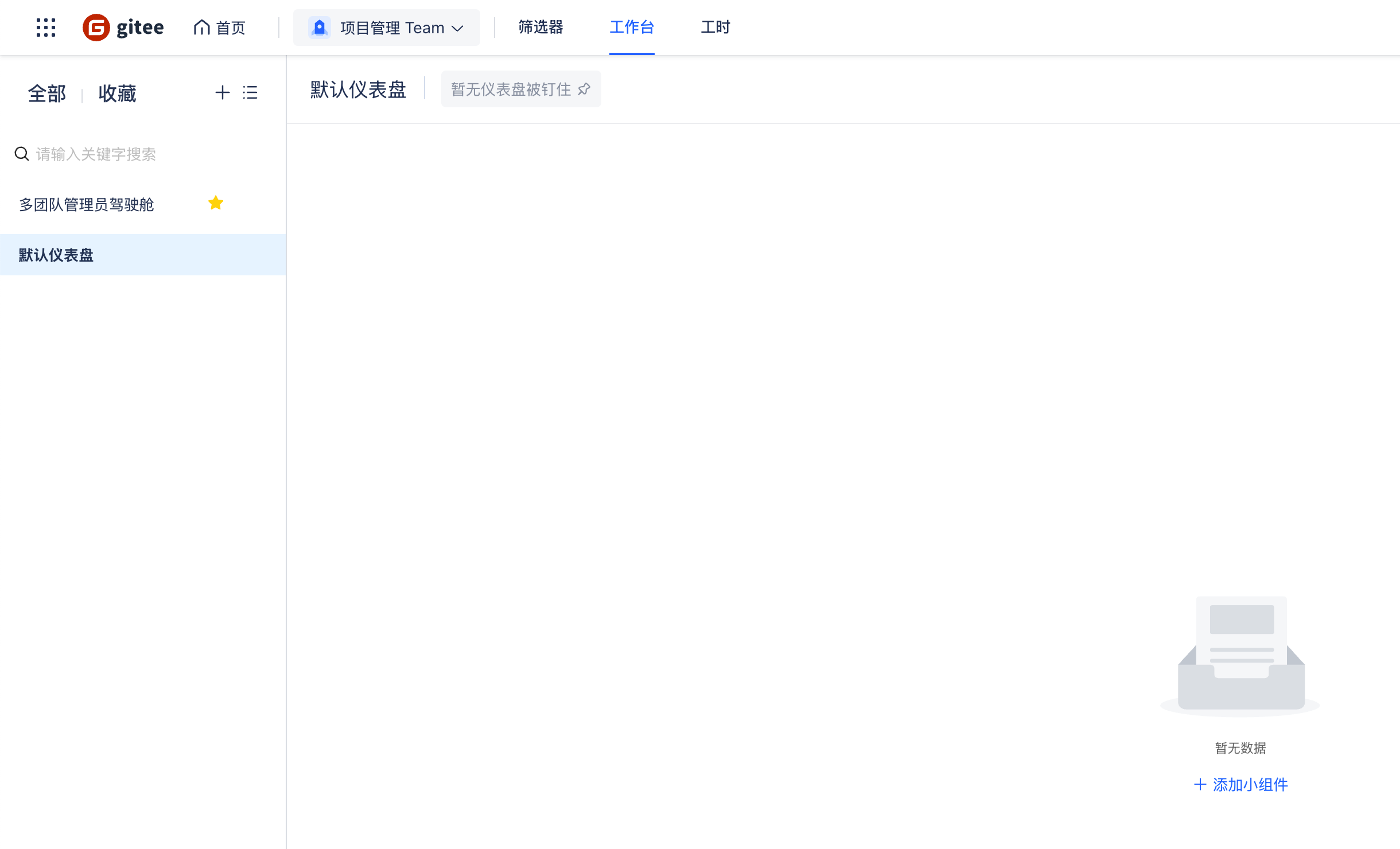
Create New Dashboard
- Open the left dropdown list and enter "Create New Dashboard" at the bottom of the list
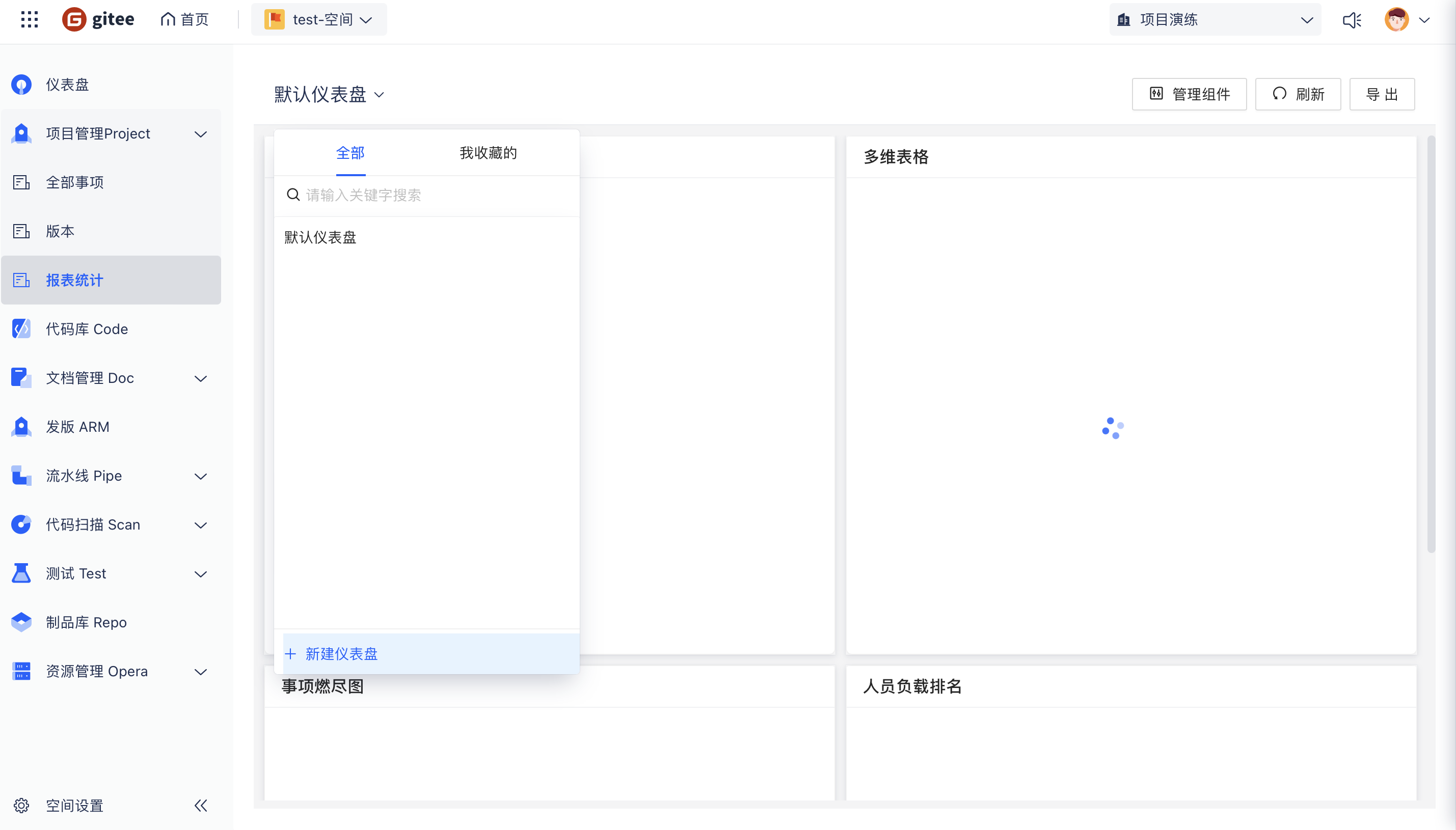 Select dashboard type
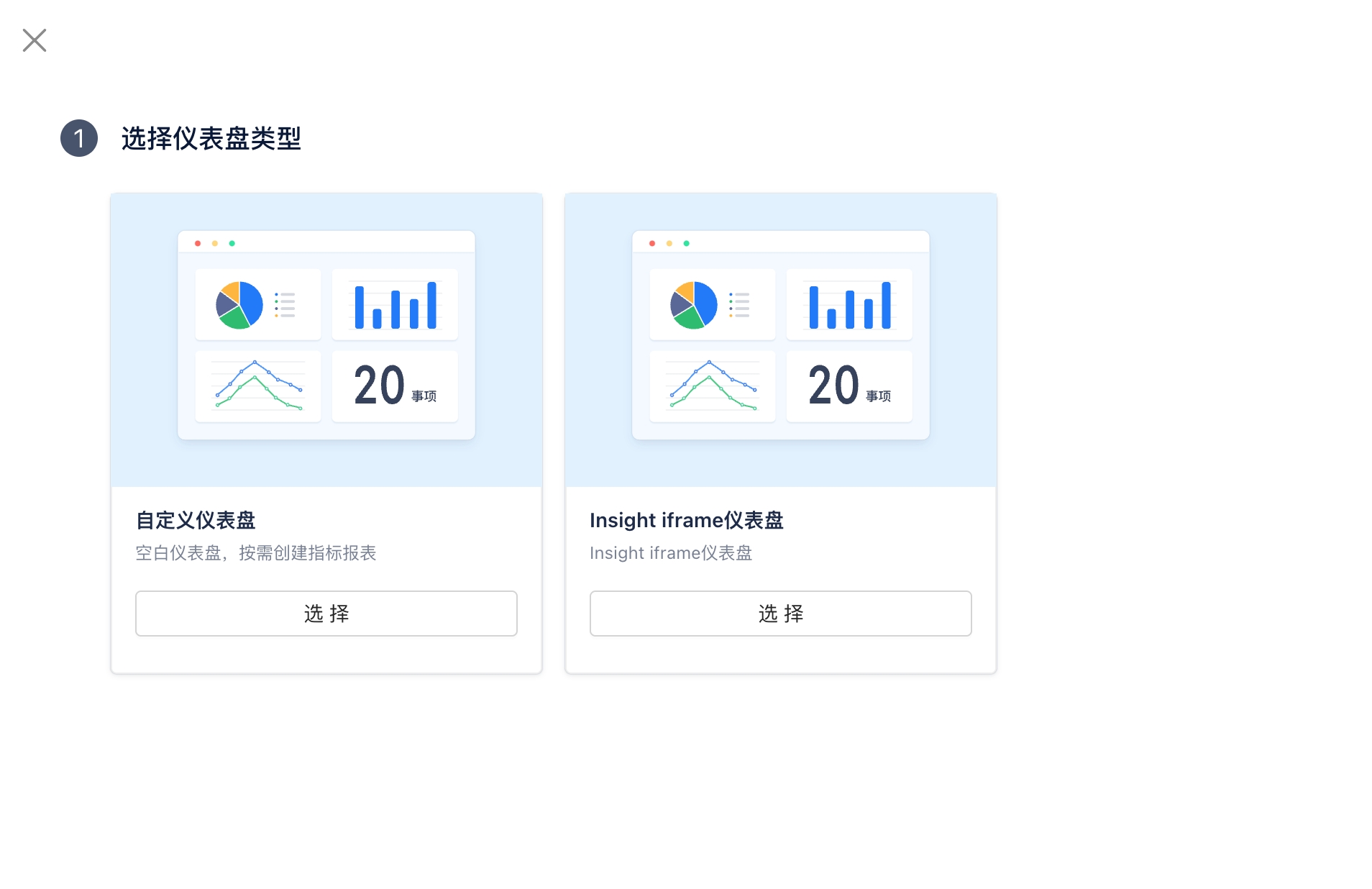 Fill in dashboard information and enter dashboard name
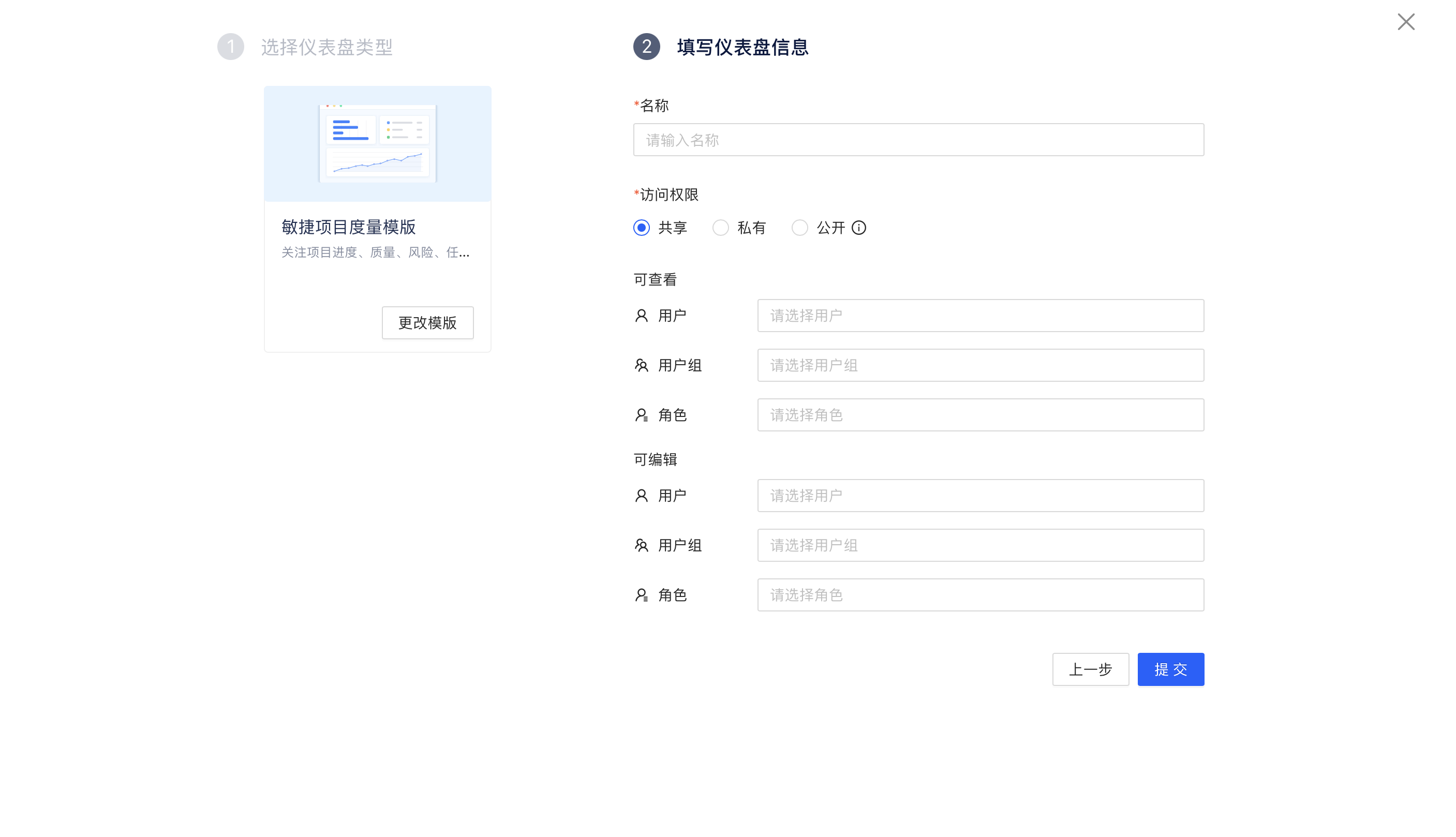
Set dashboard access permissions
-
Shared:
- View Only: Configured users/user groups/role personnel only have dashboard read permissions
- Editable: Configured users/user groups/role personnel have dashboard read and write permissions
-
Private: This dashboard can only be read and written by the creator and enterprise administrators
-
Public: All people in the enterprise can read and write
-
Click submit, select the newly created dashboard from the left dropdown
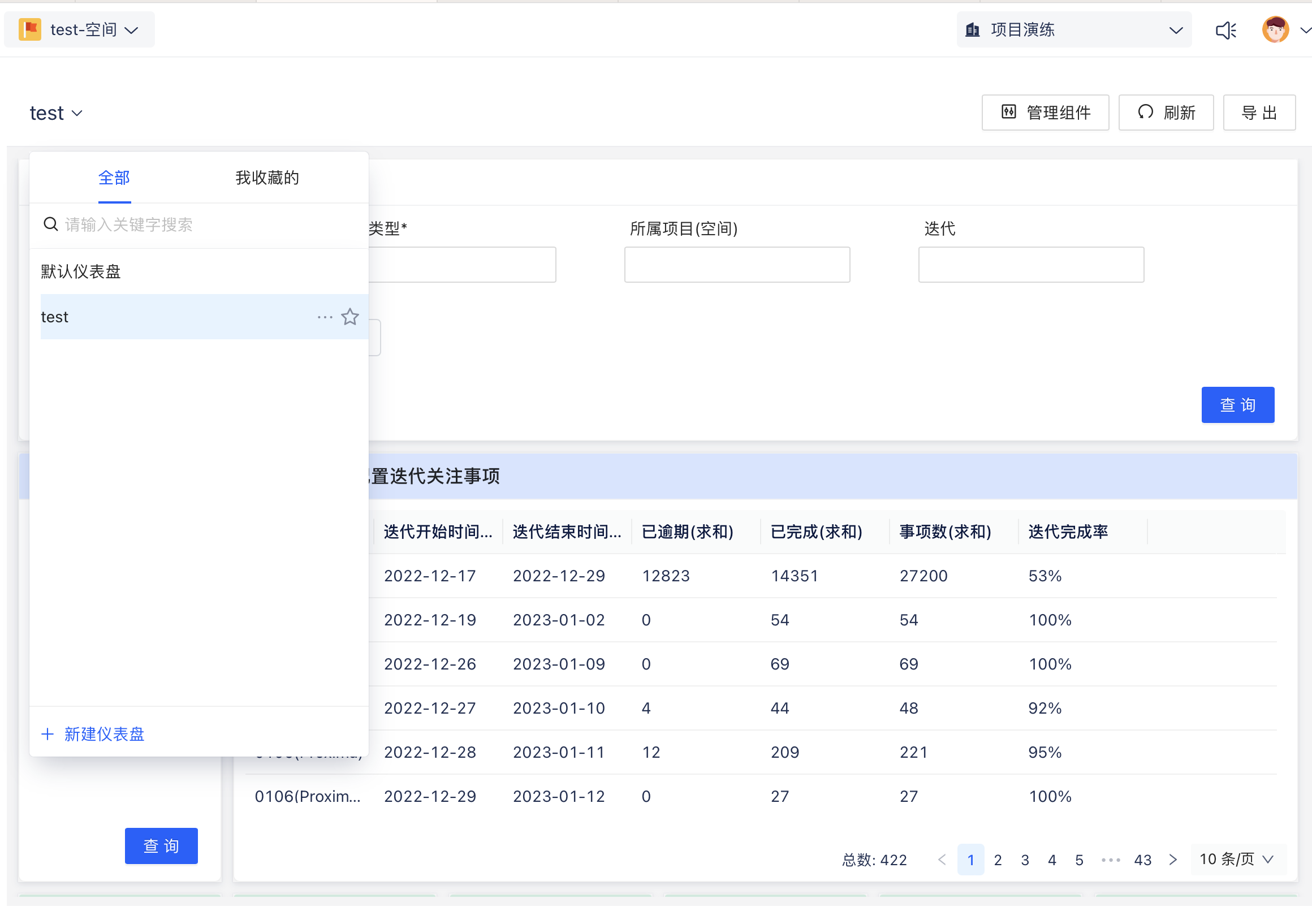
Edit Dashboard
- Hover over the dashboard to be edited on the right side of the dashboard to see the edit, copy, and delete buttons
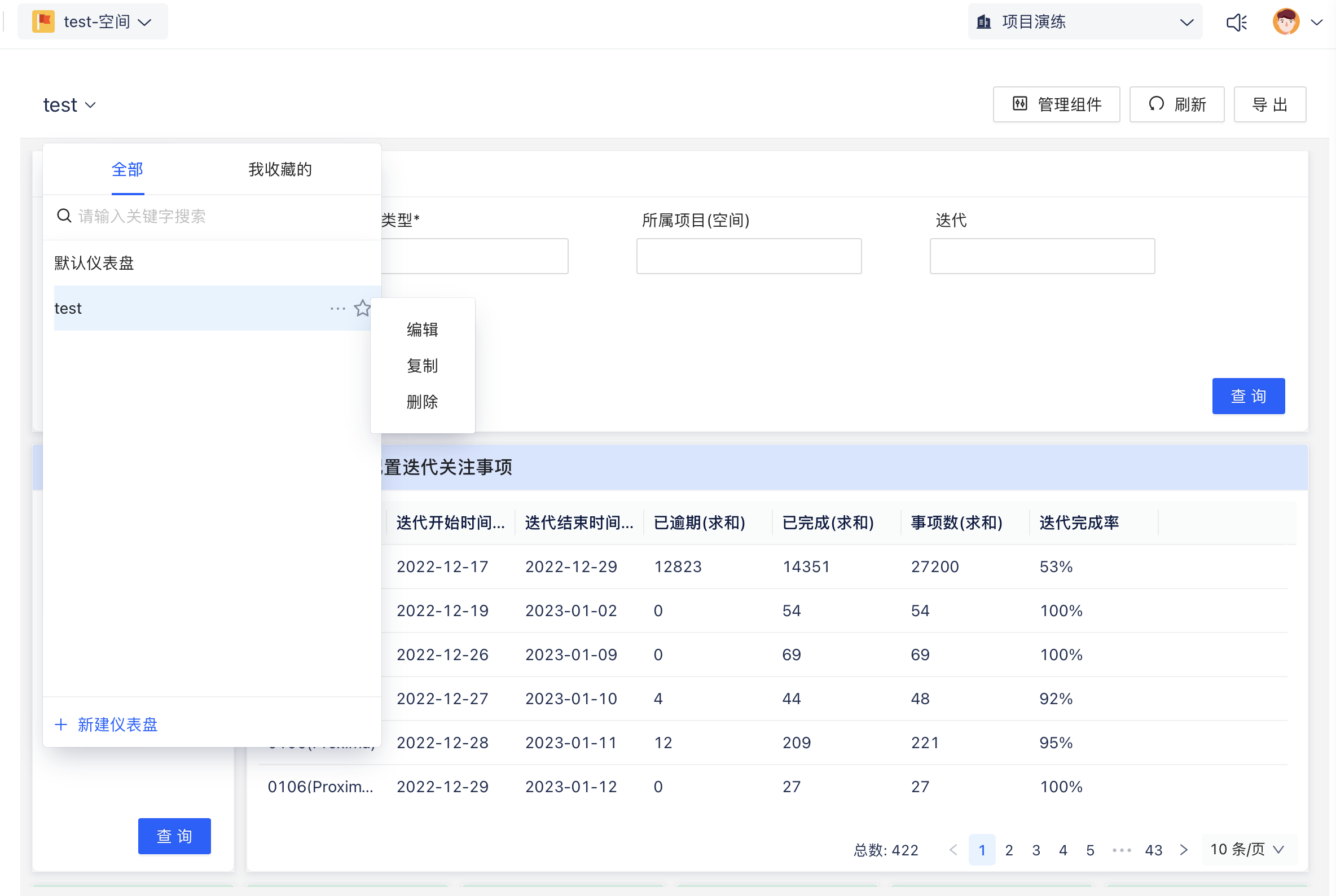
Edit Dashboard Information
Click the first edit button to modify the dashboard name and access permissions
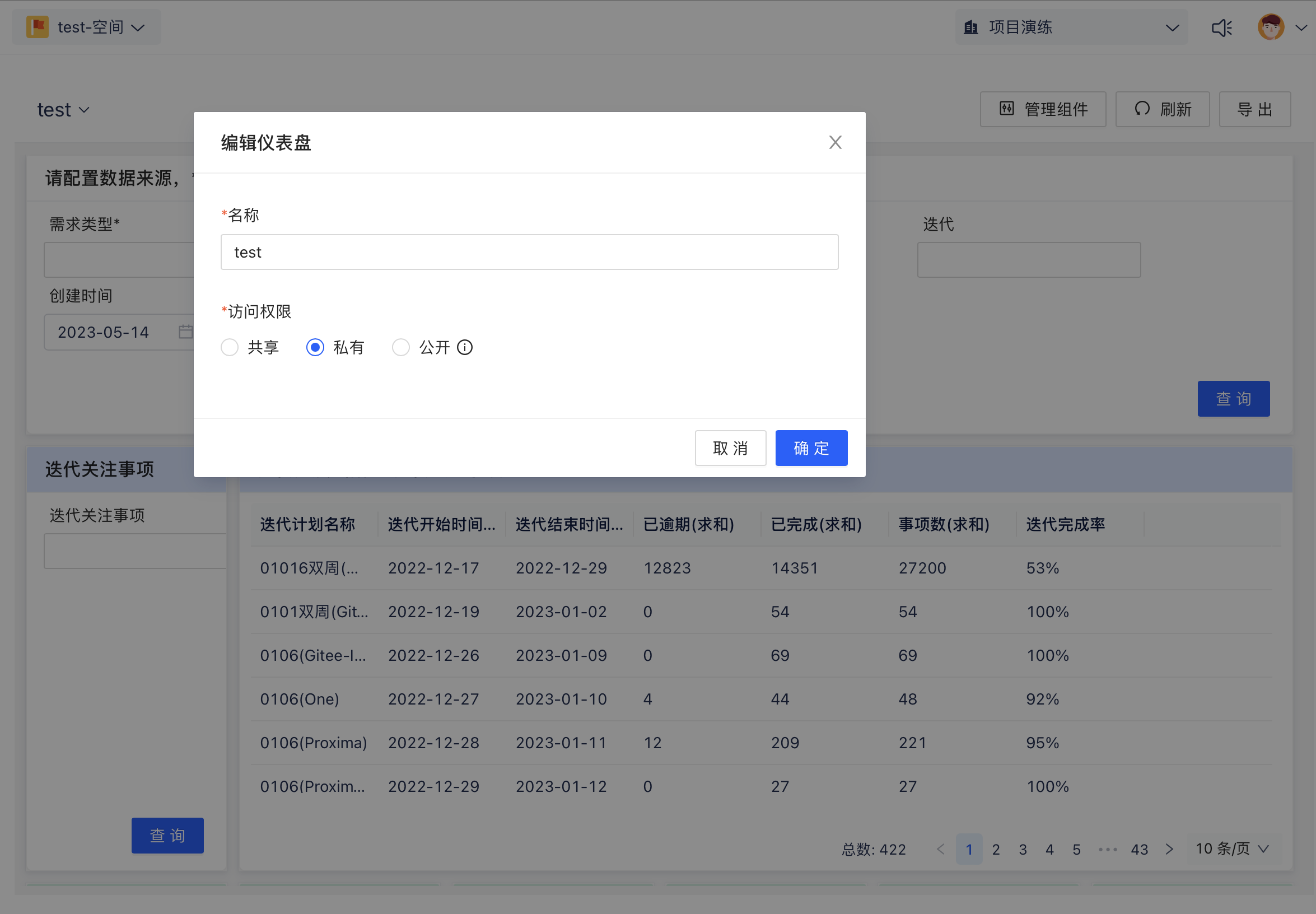
Copy Dashboard
Click the second copy button to copy this dashboard
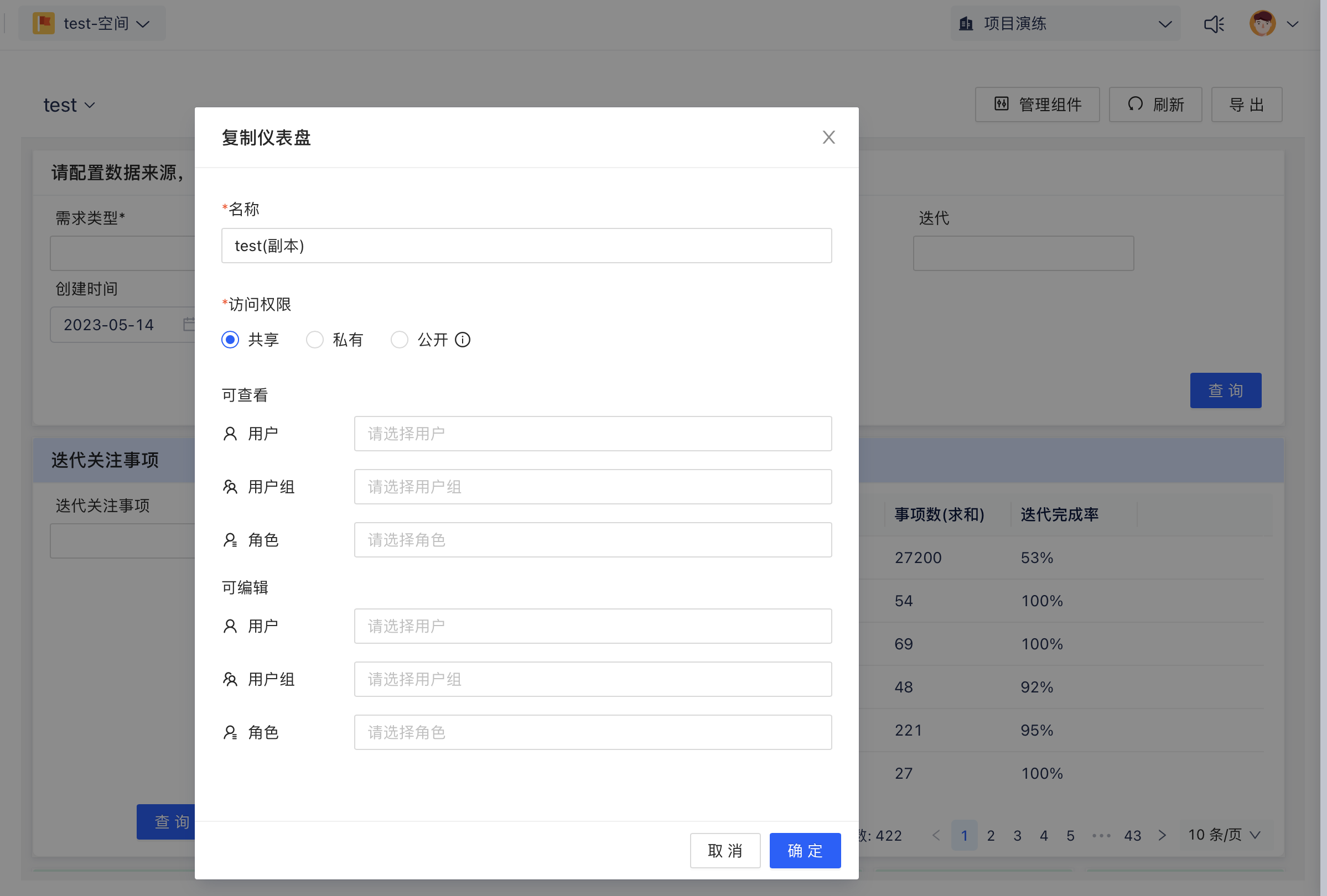
Delete Dashboard
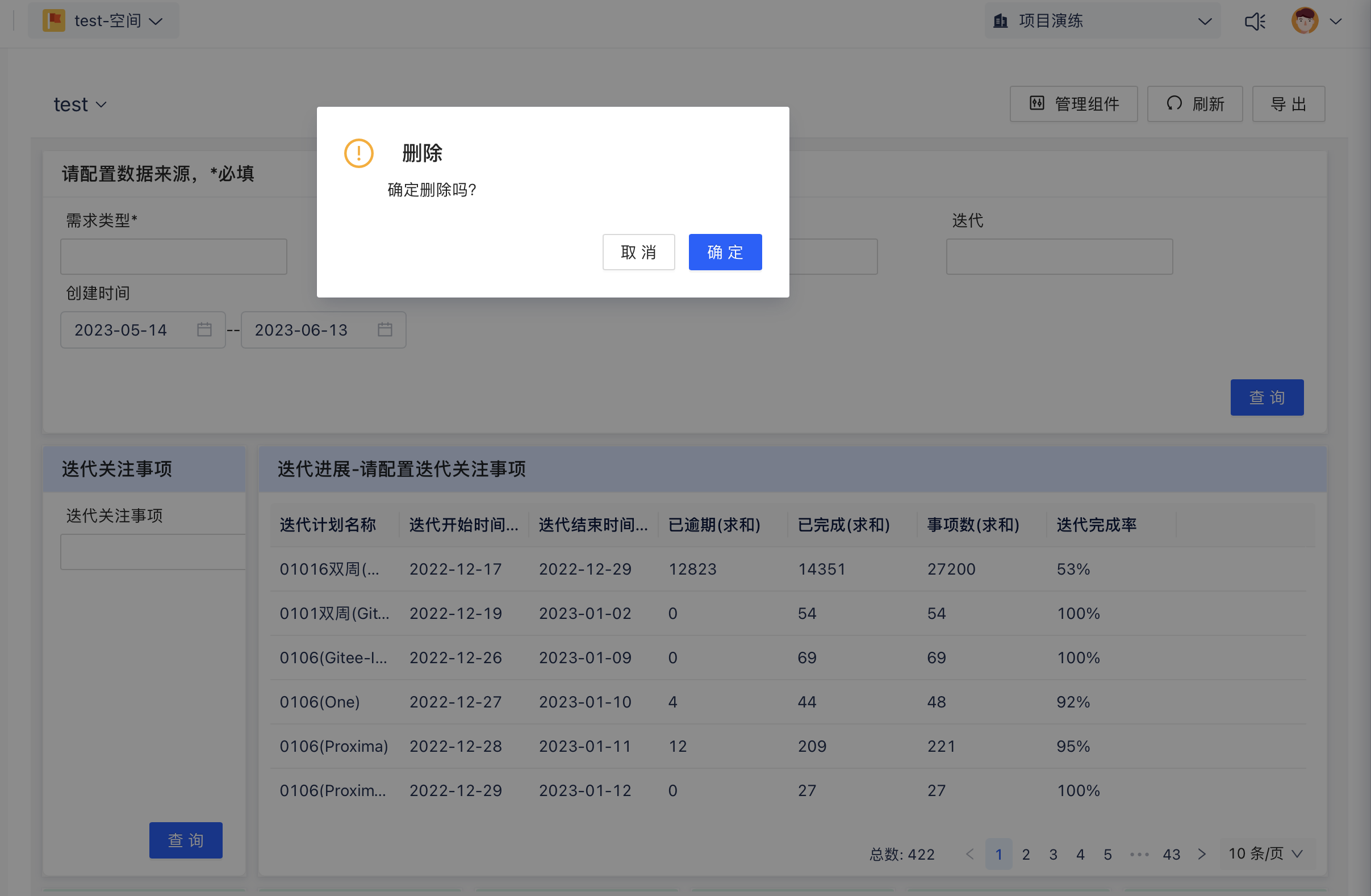
Click the third delete button to show a confirmation dialog. After confirmation, this dashboard will be deleted. The default dashboard cannot be deleted.
Favorite Dashboard
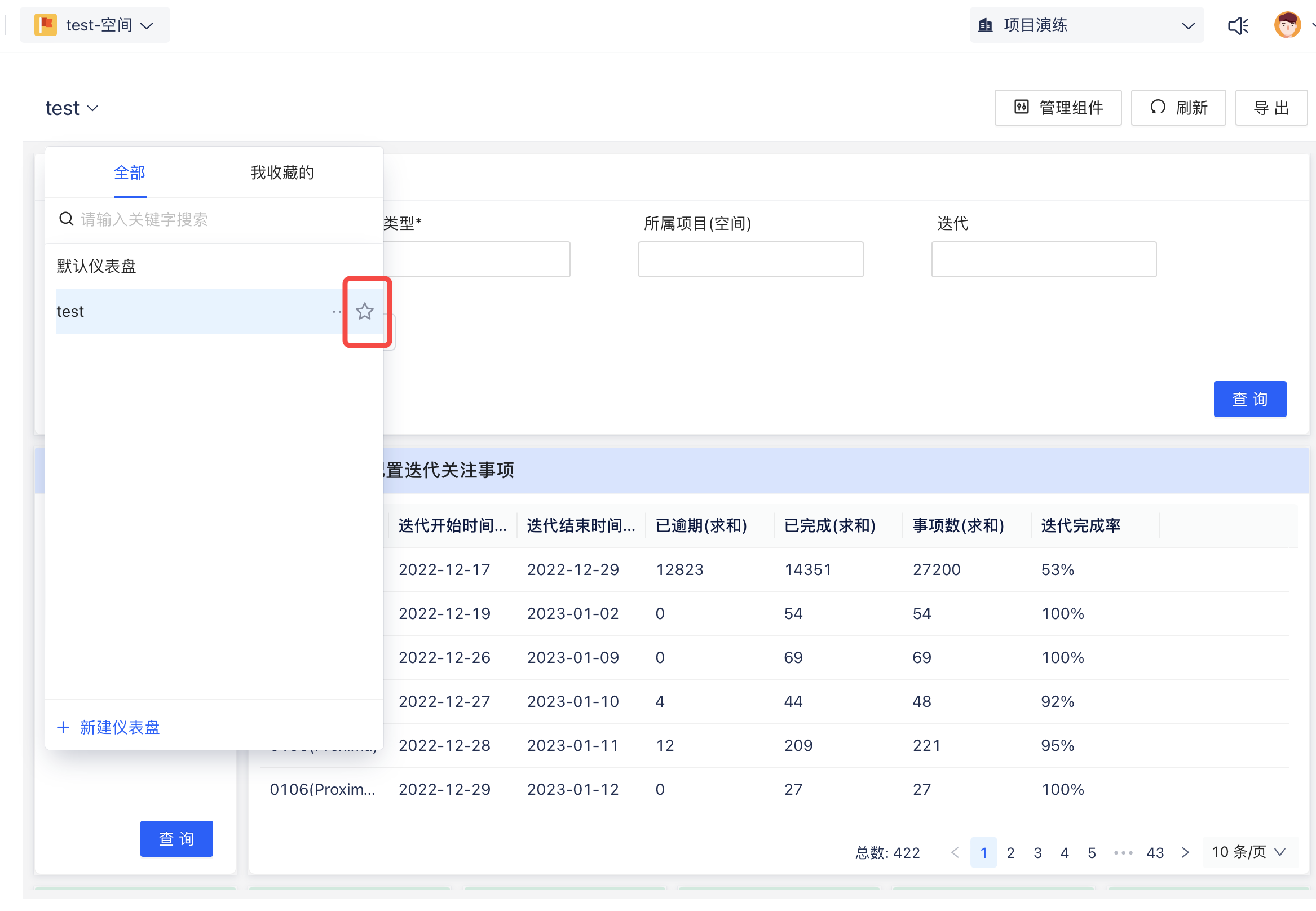
Click the favorite button on the right side of the dashboard, and this dashboard will be pinned to the top of the dashboard dropdown list.
Share Dashboard
Click the share button to copy the sharing view link of this dashboard.

Add Components
After the dashboard is created, you can add new report components or change the layout of existing components
- For blank dashboard, click "Add Widget" (component introduction see Basic Reports)
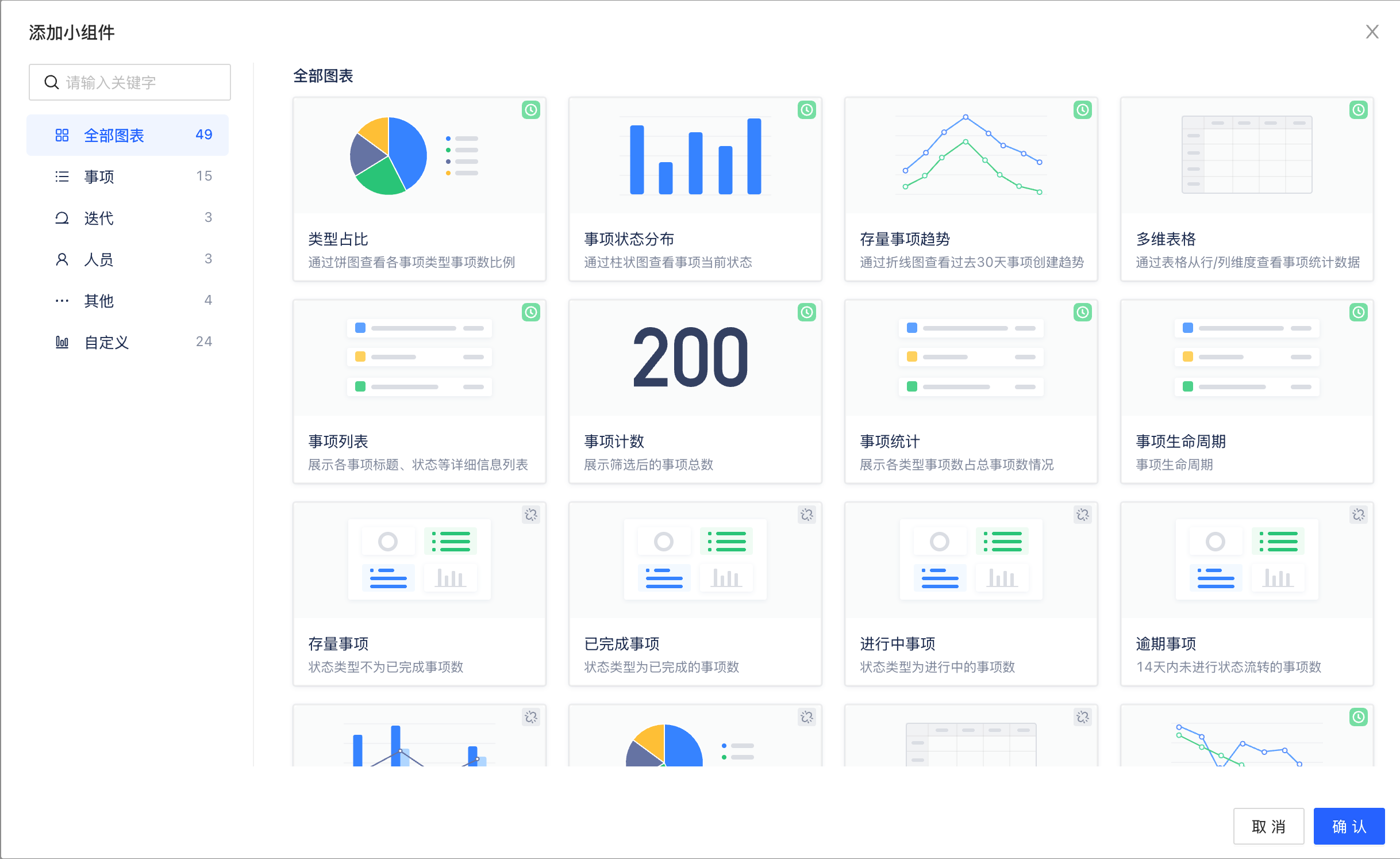
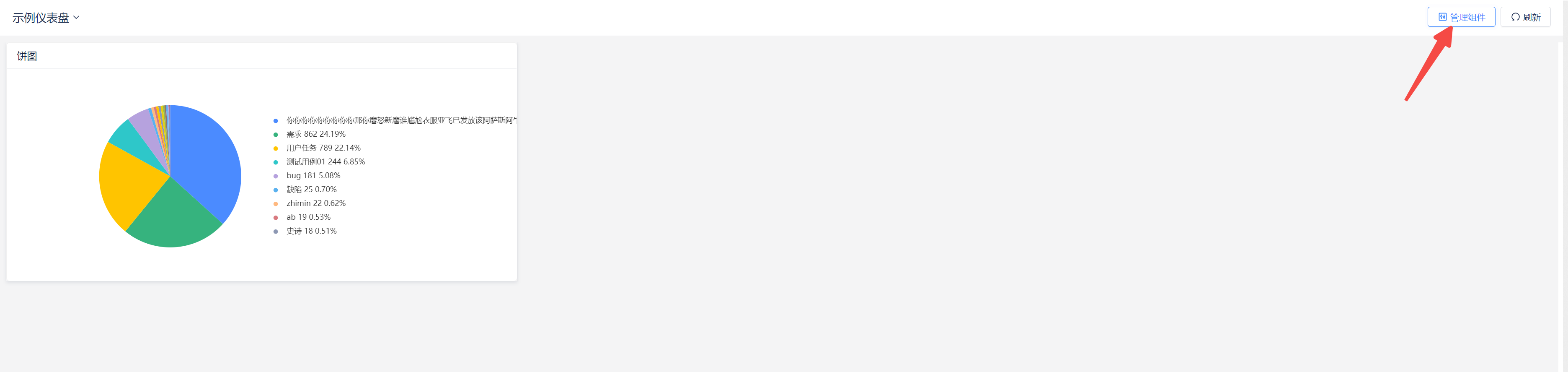
- Manage components
- Click the refresh button to trigger data refresh for components within the dashboard
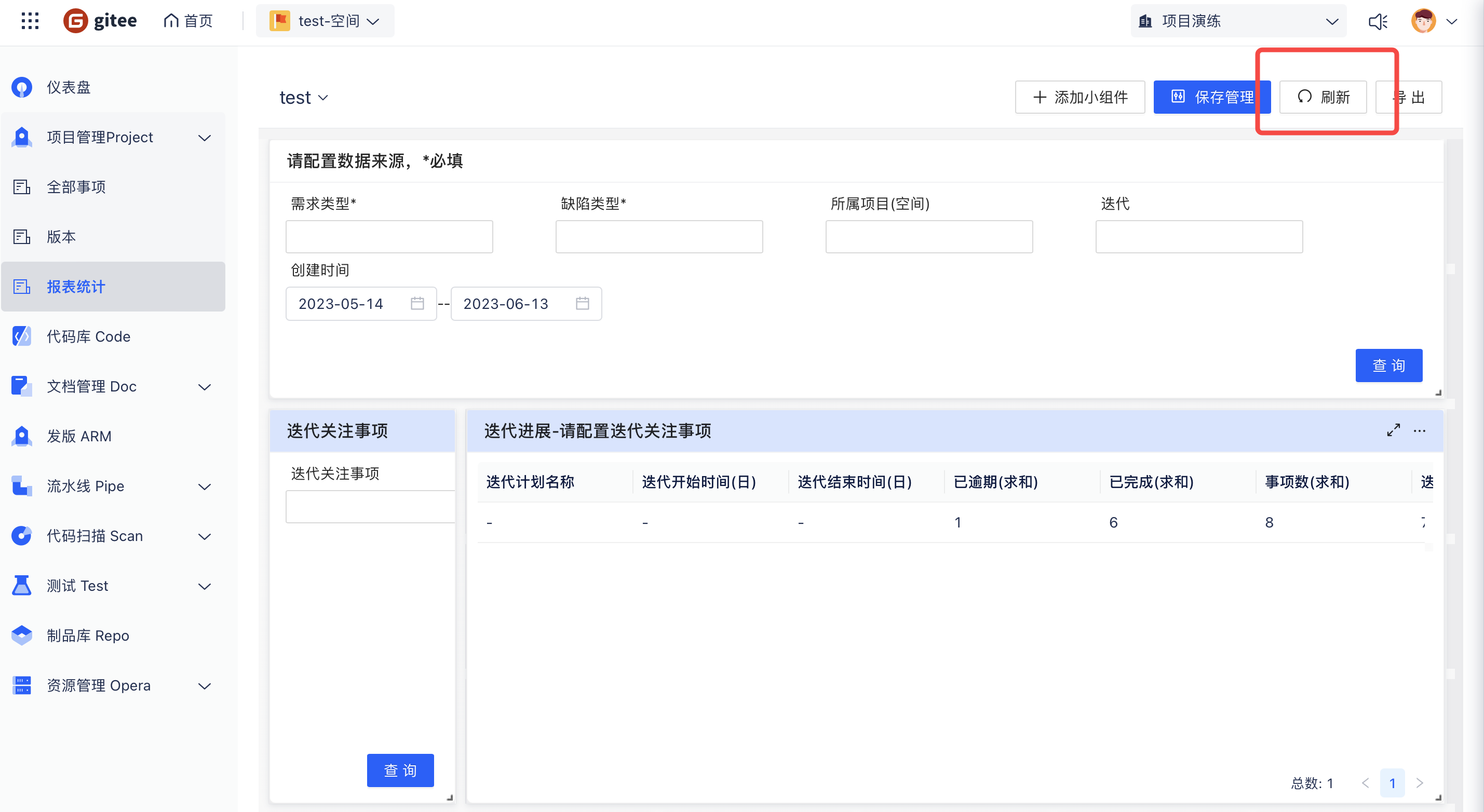
- Individual component operations: hover over the icon in the upper right corner of the component
- Click fullscreen
- Enter component configuration interface

- Click more to edit component color, export component data, delete component