Custom Components
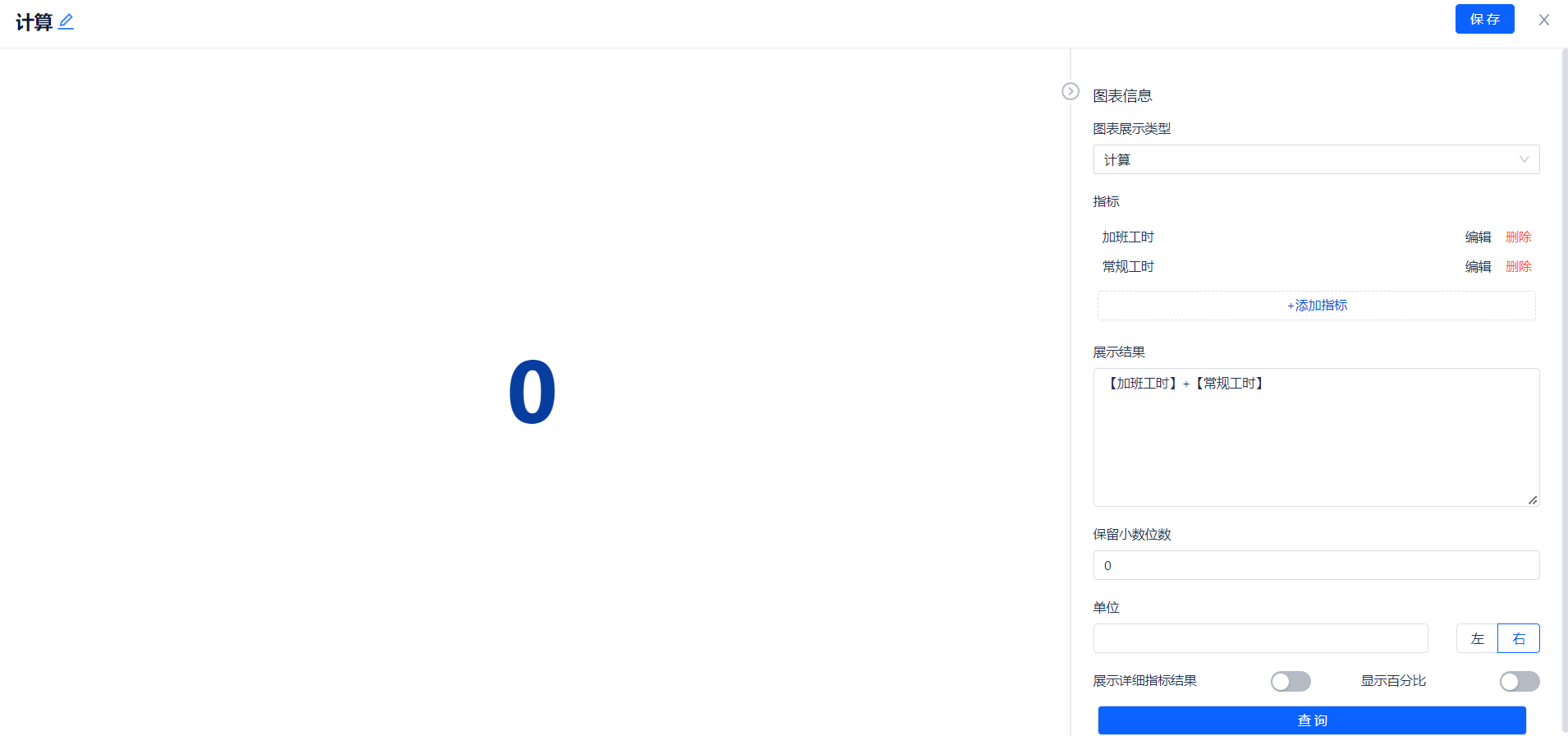
Calculation
-
Use case: Customize calculation rules for custom item fields and display them in metric format
-
Steps:
- Select calculation, click confirm
- Configure metrics (see details below)
- Configure display results (see details below)
- Configure decimal places, units, display detailed metric results, and show percentages as needed
- Click query
- Click save in the upper right corner and name the component
-
Configure metrics
- Click add metric, select existing fields for renaming, and filter field data content as needed.
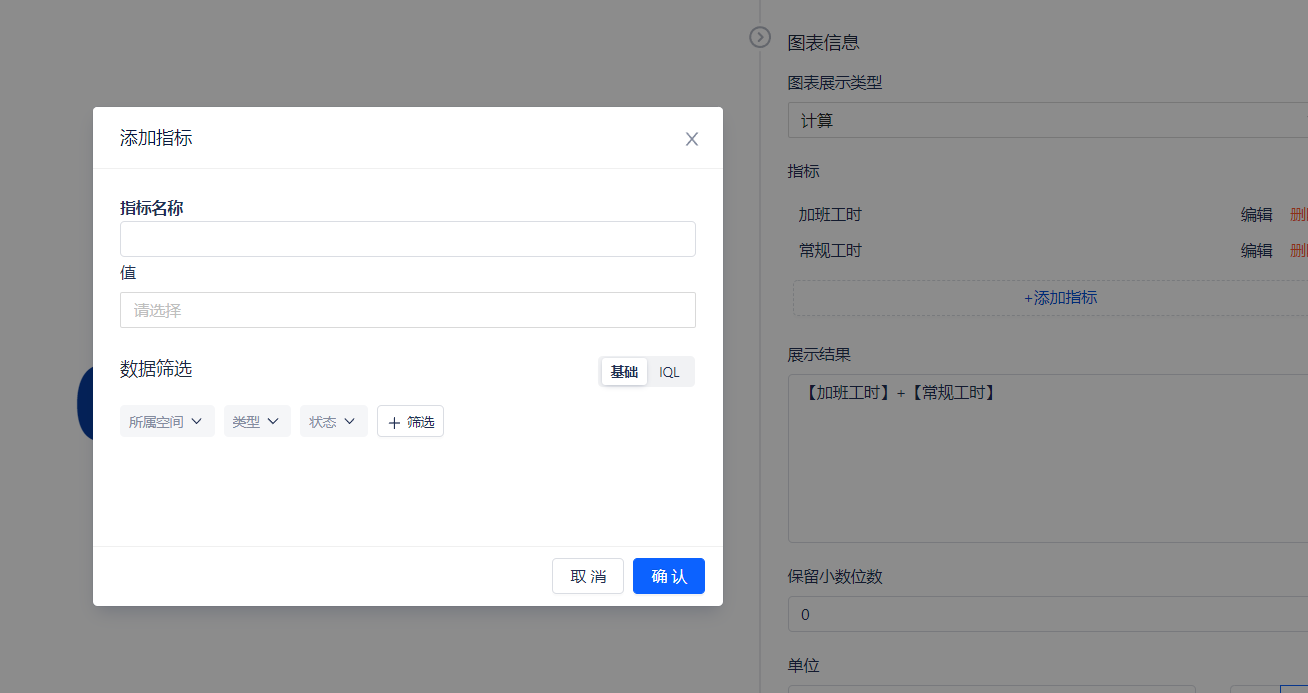
- Edit and delete existing configured metrics
- Click add metric, select existing fields for renaming, and filter field data content as needed.
-
Configure display results, perform arithmetic operations on existing metrics, the calculation result will be the displayed result
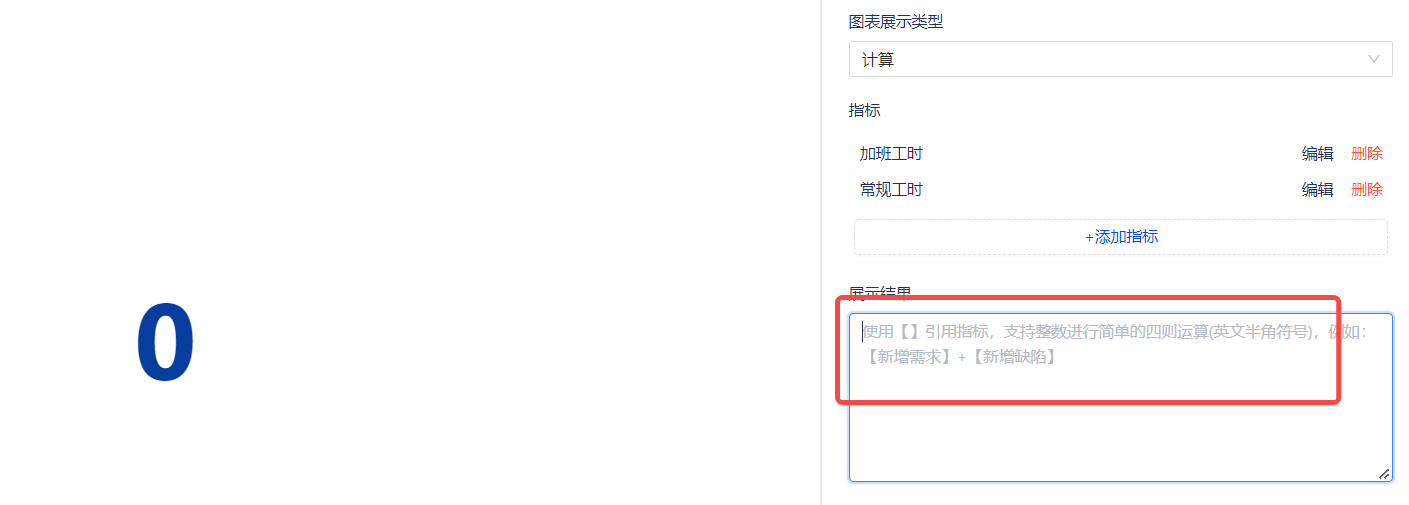
Example:
Rich Text
-
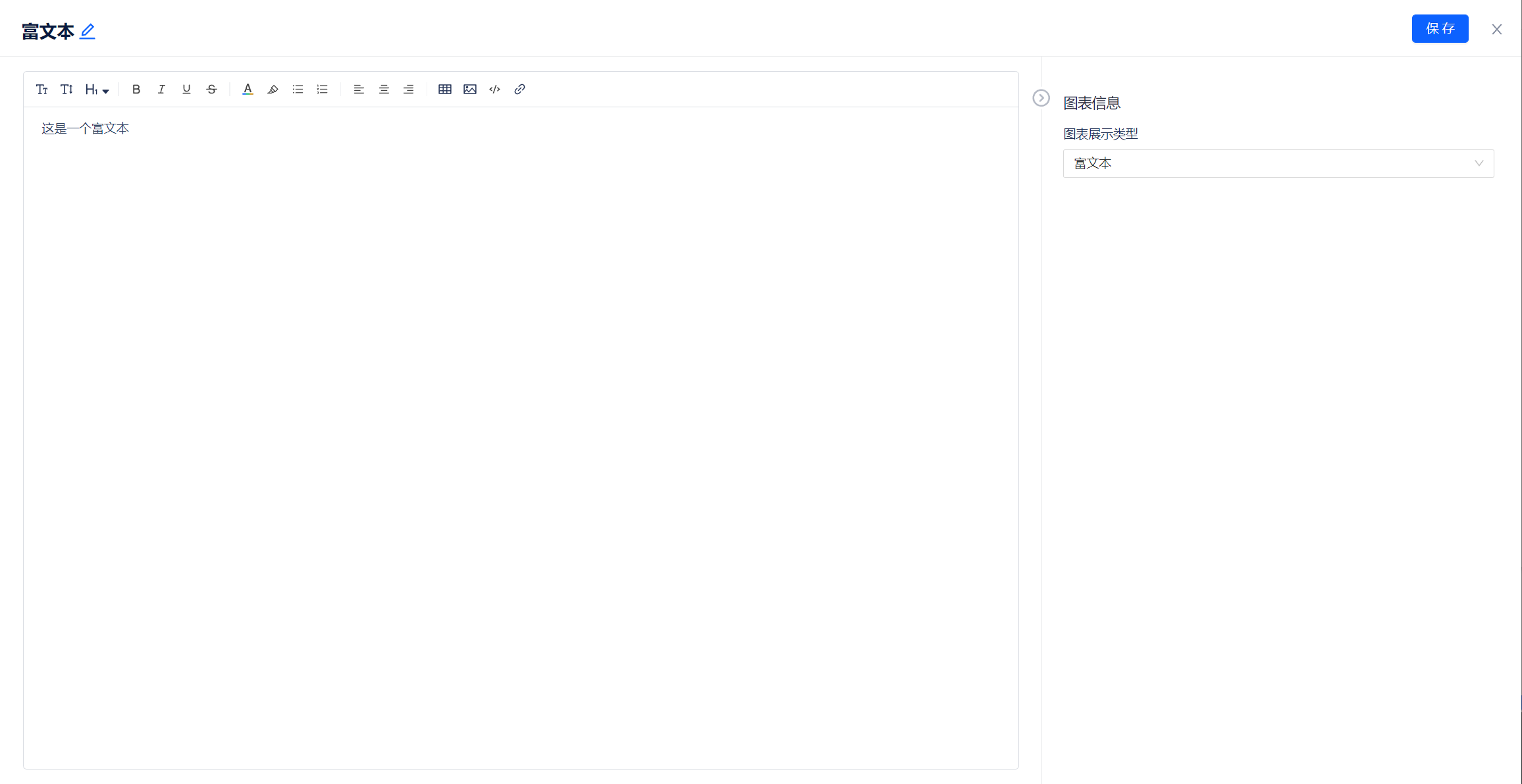
Use case: Provide rich text component capability
-
Steps:
- Select rich text, click confirm
- Write rich text content as needed
- Click query
- Click save in the upper right corner and name the component
Example:
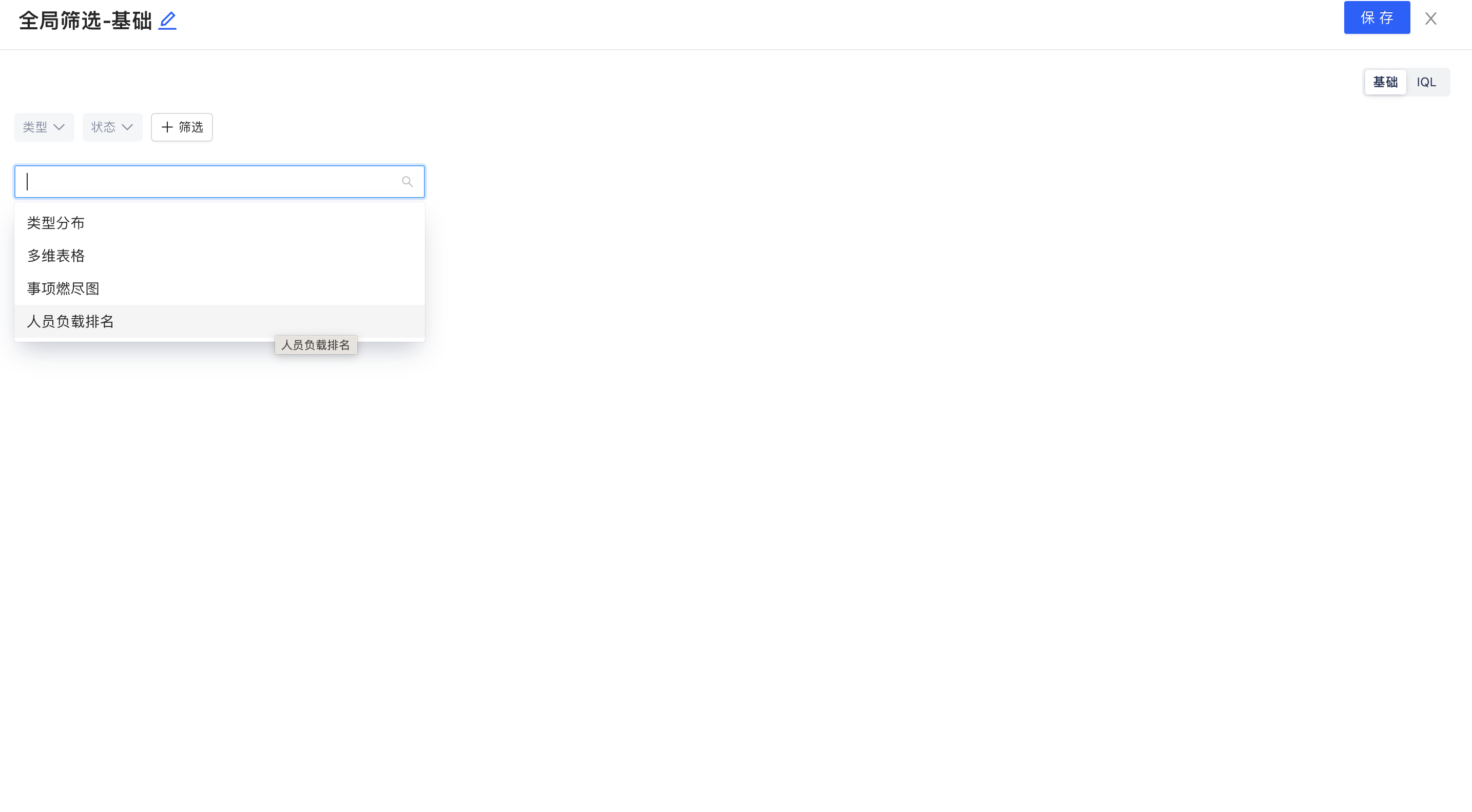
Global Filter - Basic
-
Use case: Provide global filtering functionality for real-time reports
-
Steps:
- Select global filter - basic, click confirm
- Select type and status as needed
- Add filter conditions as needed
- Select report type as type distribution, multi-dimensional table, item burndown chart, or personnel workload ranking as needed
- Click save in the upper right corner and name the component
Example: