Custom Fields
Scenario Description
Item fields are the basic elements of items, providing specific descriptions of item attributes. Different types of attribute fields are used to express information such as assignees and priorities of items.
For example, in the "Requirement" type, if you need to record the requirement source, you can add the requirement source field attribute to the requirement type for a more structured description of requirements.
Interfaces are the carriers of fields, used to display the layout and logical validation of items.
Main Features
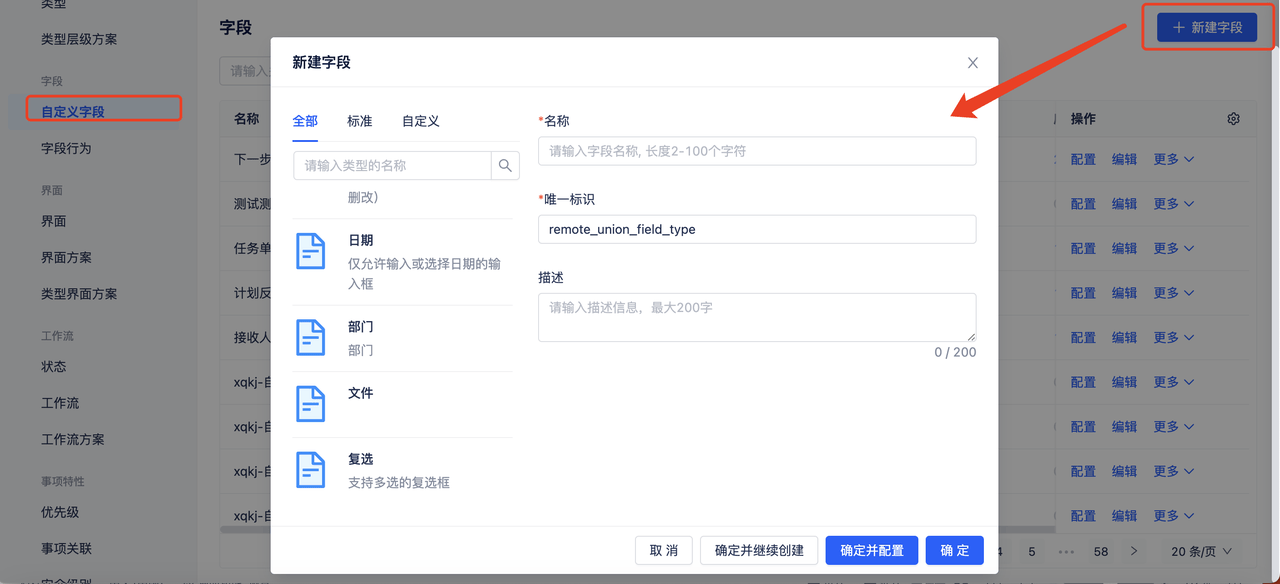
- Create new fields, select field types (currently 20+ field types available), fill in field name, field identifier, description and other information after selecting the type, click OK to successfully create the field
- Click [Configure] to enter the field configuration page, where you can configure field placeholder prompts, dropdown values, data sources and other information
- Click [Edit] to modify field names
- Click [Copy] to copy fields and make modifications
- Click [Delete] to delete fields. After deletion, all items using this field will have the field removed
1. Field Configuration
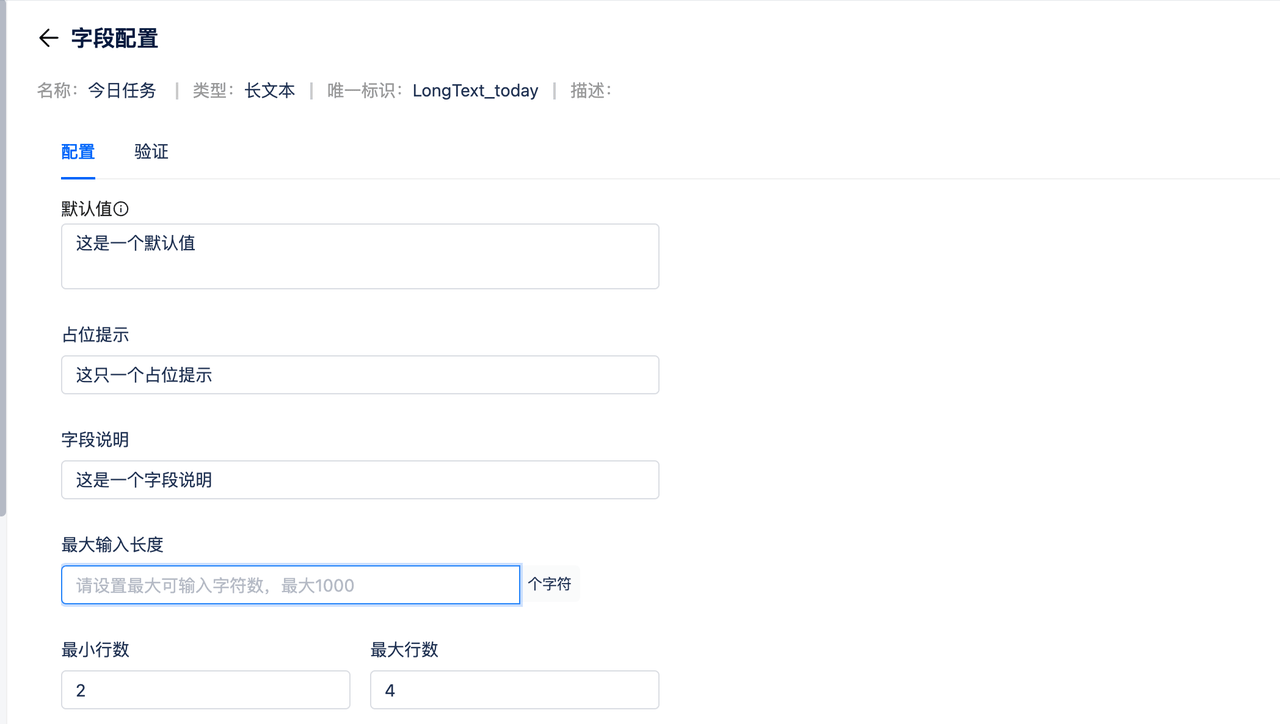
- Default Value: The default display value when this field attribute is applied to items
- Placeholder Prompt: Placeholder prompt when filling in the field
- Field Description: Field tip prompt
- Maximum Input Length: The maximum length allowed for this text
- Minimum Rows: Minimum number of rows allowed for display; Maximum Rows: Maximum number of rows allowed for display Example Effect: [Image]
2. Field Attribute Categories
| Field Type | Description |
|---|---|
| Single Select | Only one option value can be selected when applied |
| Multi-Select | Multiple option values can be selected when applied |
| Checkbox | Supports selecting multiple values |
| Dropdown | Custom field values with support for single/multi-select |
| Numeric | Supports numeric input with maximum, minimum, and precision settings |
| Date | Time component supporting display of time, date, month, year |
| Long Text | Text only (no images), maximum length 1000, suitable for scenarios with extensive text descriptions (does not support exact search) |
| Short Text | Text only (no images), maximum length 200, suitable for scenarios with brief text descriptions |
| User | Supports setting user default values, multi/single select, and user selection scope |
| User Group | Uses system user groups as data source, supports multi/single select |
| Editor | Rich text supporting images, tables, text, etc. |
| Tag | Customizable tags with maximum tag count and length settings |
| Tree Component | Displays in tree structure |
| Data Reference | Uses system items as data source, supports multi/single select |
| File | Supports setting file upload count, size, file types, etc. |
| Field Collection | A collection of fields, similar to table headers, supports multiple rows and columns |
| Bind Space | Uses system spaces as data source, can reference spaces when used |
| Version | Depends on version component, dropdown values are versions set in version component, supports custom affected versions, fixed versions, etc. |
| Cascade | Sets cascade relationships between field values |
3. Dropdown
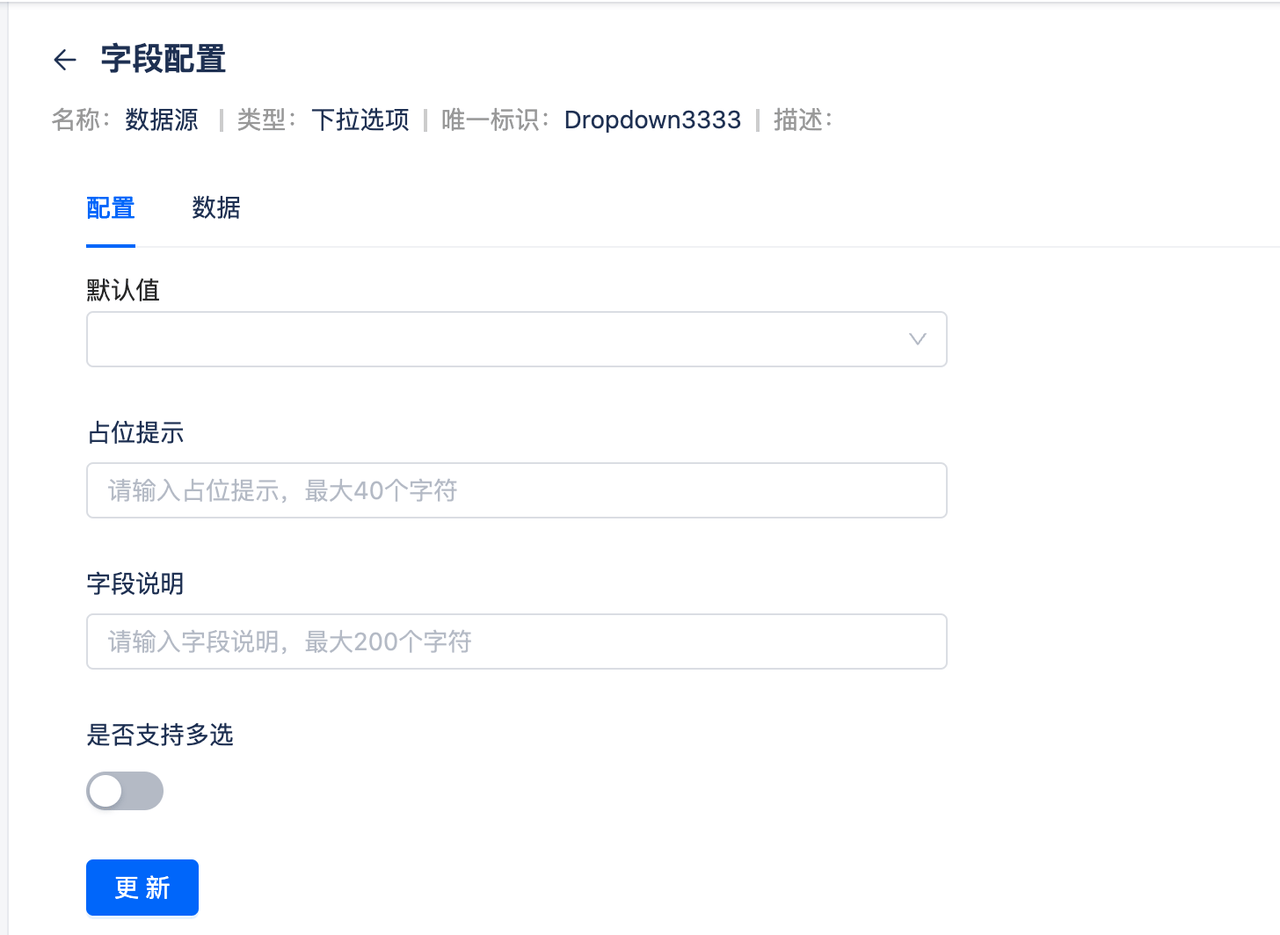
- Click to configure dropdown default values, placeholder prompts, field descriptions, etc.
- Select whether multi-select is needed
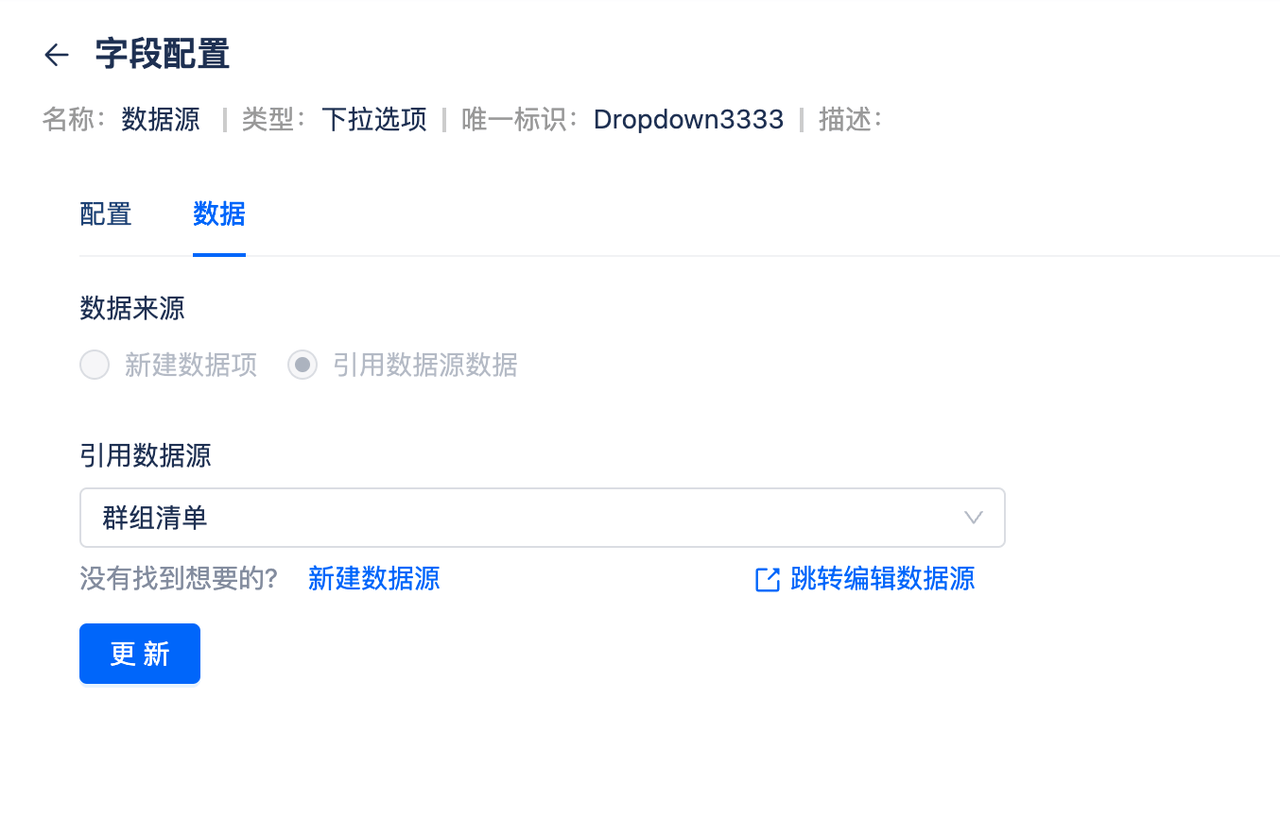
- Configure data source, choose between manual maintenance of dropdown values or reading from third-party data sources
- Click [Create Data Item] to enter option names and values, with edit and delete operations available. Values serve as unique attributes and cannot be changed
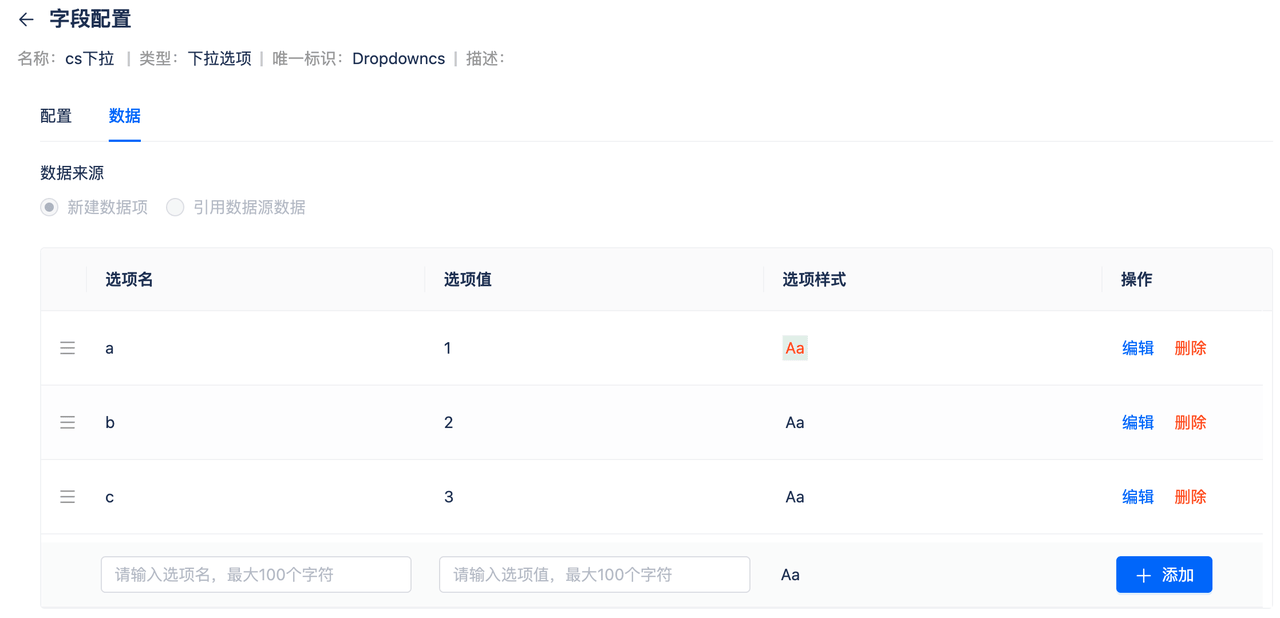
- Click [Reference Data Source Data], select data source. Data source configuration refers to Data Source. Once a data source is selected, it cannot be changed
4. Data Reference
-
Scenario Description This field type can reference items as source data. For example, if the system maintains "System" and "Requirement" item information, when creating defects, you can select the system and requirement the defect belongs to using the data reference field type.
-
Main Features
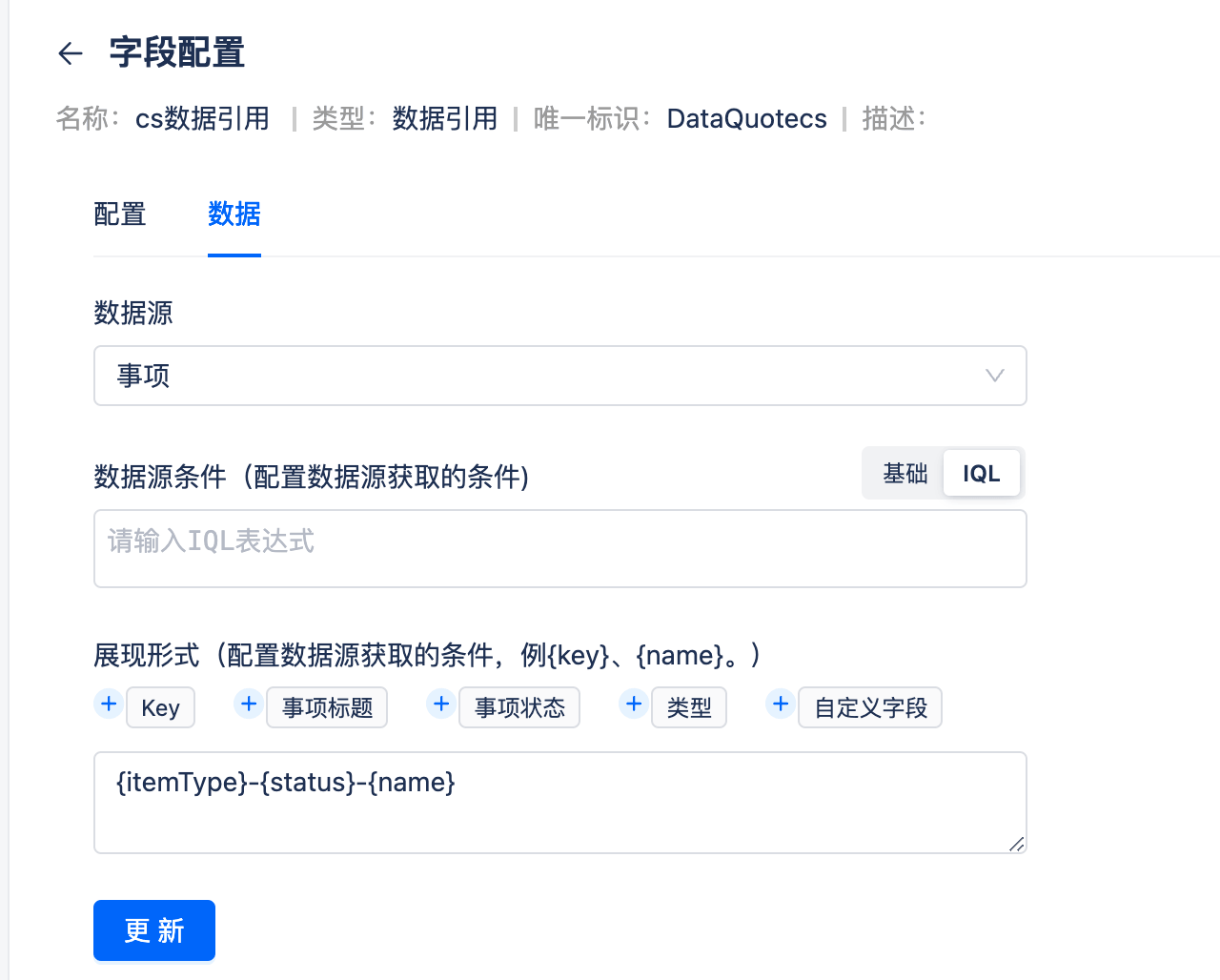
- Configure data source conditions: Filter corresponding items through filter conditions or by writing IQL. For IQL syntax details, see Filter
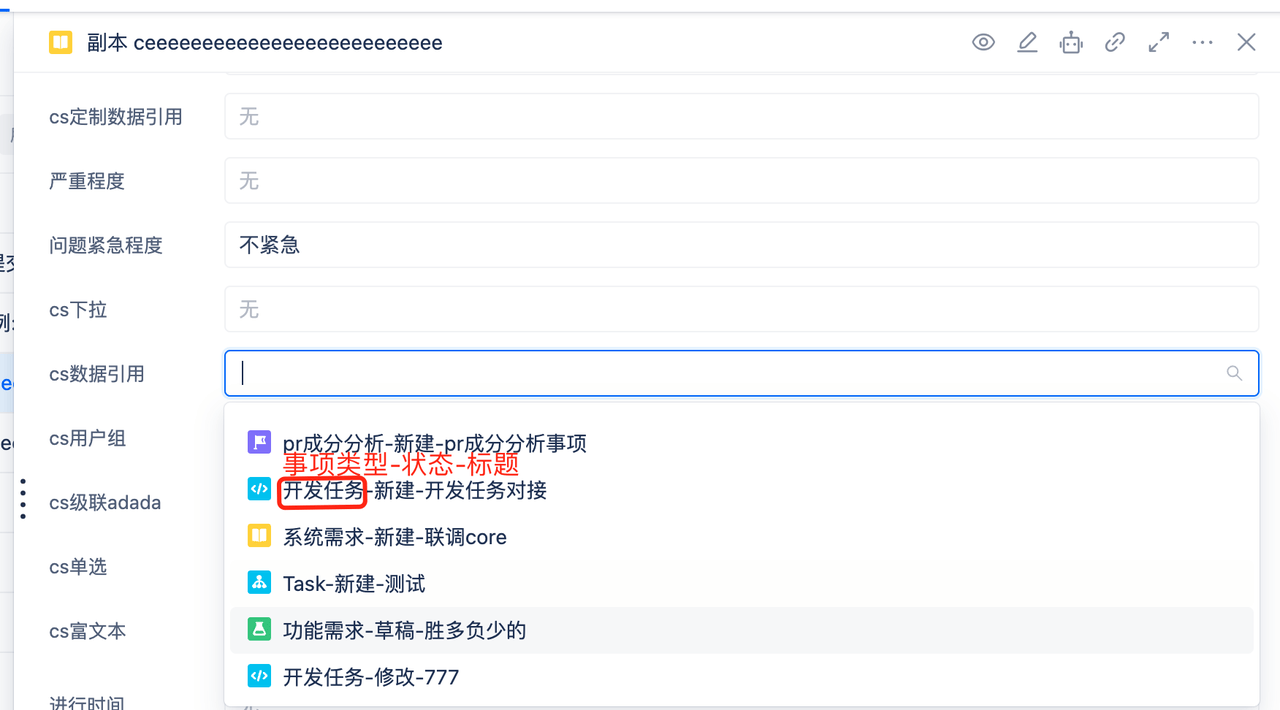
- Display Format: Configure default display content when selecting, supports title, key, status, type, and custom text fields. Configuration display is as follows:
5. File
-
Scenario Description Used to carry files, can define different file field names such as requirement specification documents, technical documentation, etc.
-
Main Features
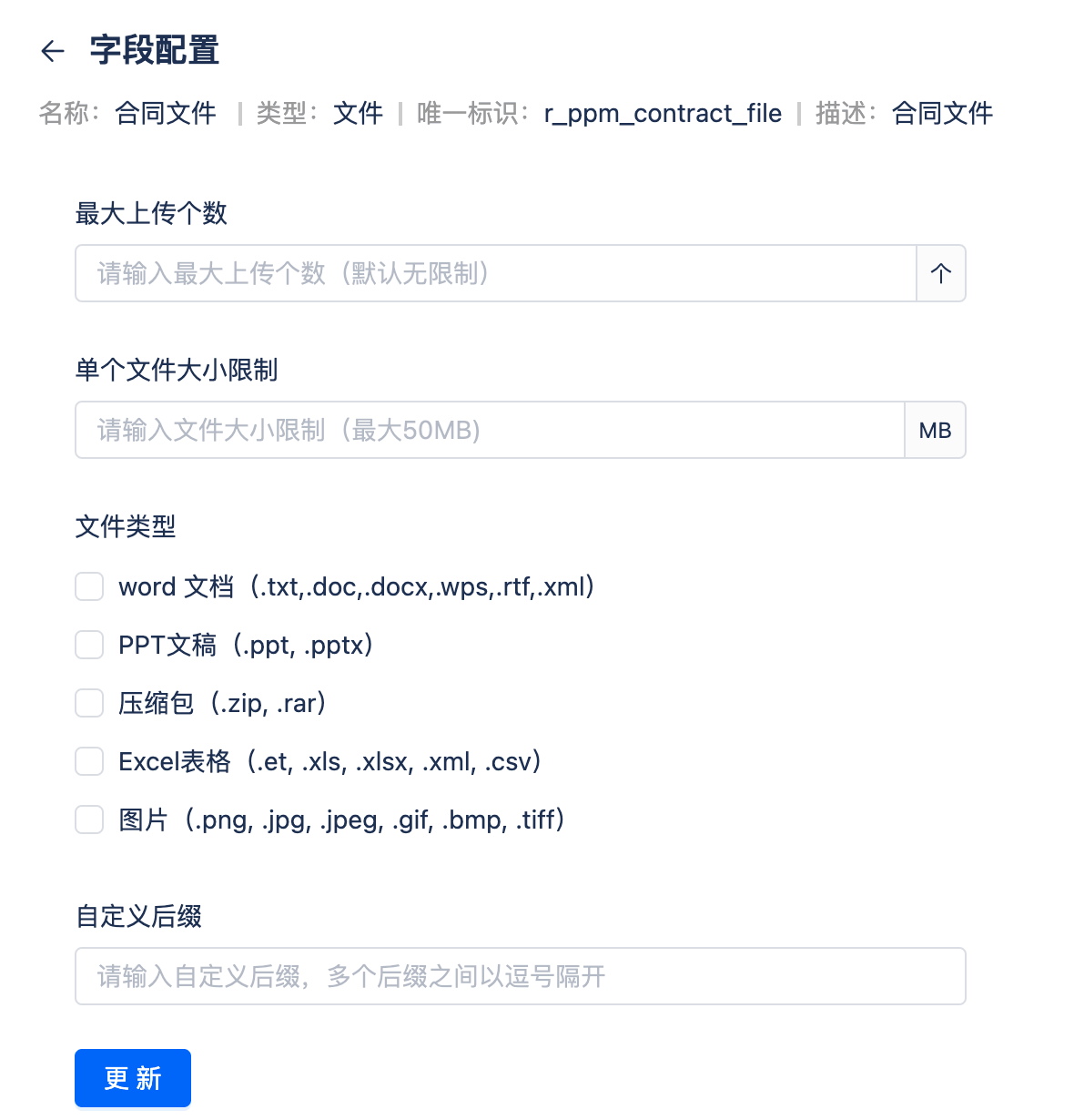
- Enter maximum number of files to upload. If empty, no limit is imposed
- Set individual file size. System default maximum is 50M, can only be set within 50M. If exceeding 50M, 50M will be enforced
- File Types: If no types are selected, all types are supported by default. If types are selected, only the configured file types can be uploaded