Workflow and Schemes
Scenario Description
Item workflow configuration refers to the configuration of how items transition between different states.
Main Features
Status: Users can determine what states items have based on different business scenarios and configure these states in the system. Status supports creation, editing, and deletion.
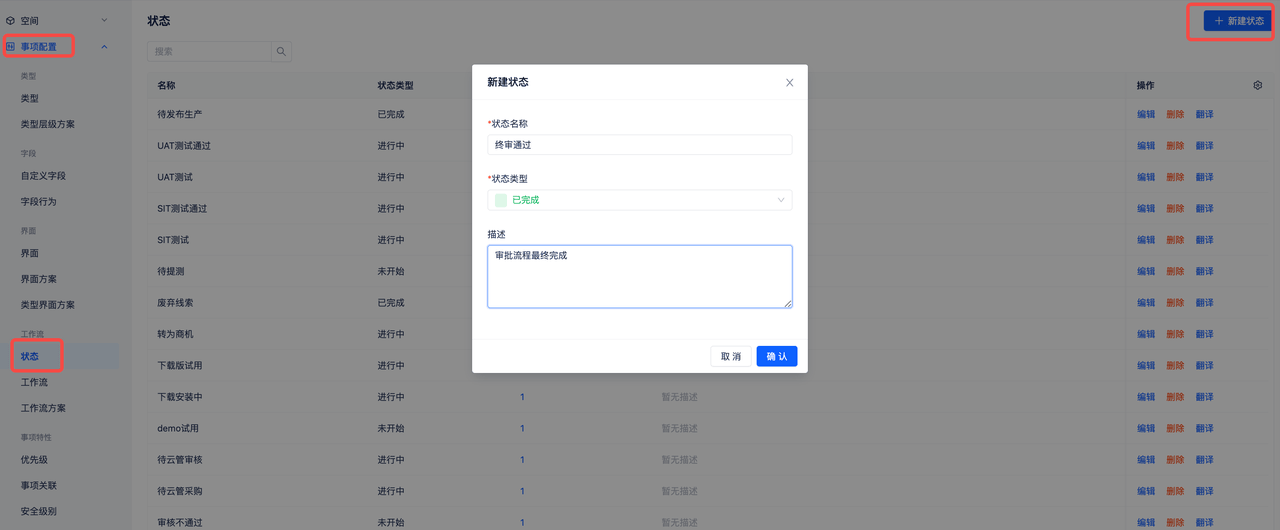 Go to Team Settings - Item Configuration - Status to create, edit, and delete statuses.
Workflow:
Workflow supports creation, editing, and deletion.
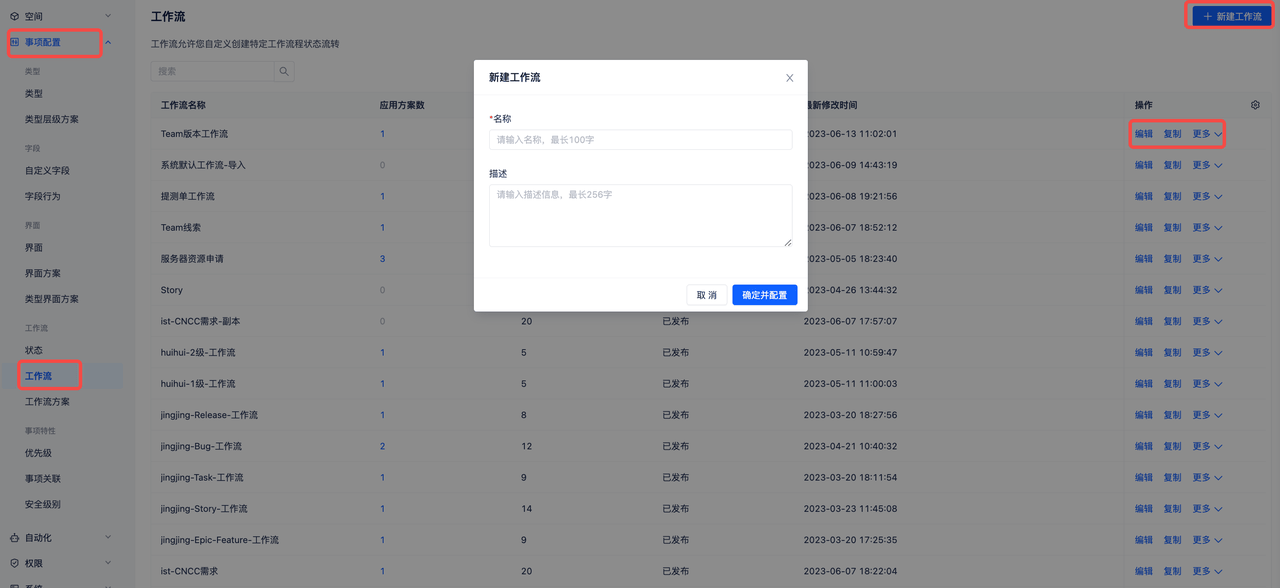 Go to Team Settings - Item Configuration - Workflow to create, edit, and delete workflows.
Workflow Configuration:
Select the workflow status to configure, and set up the entire transition process of items according to business requirements. Use connecting lines to set transition actions. After connecting, a settings panel will pop up on the right side of the interface where you can associate corresponding transition screens and add transition rules.
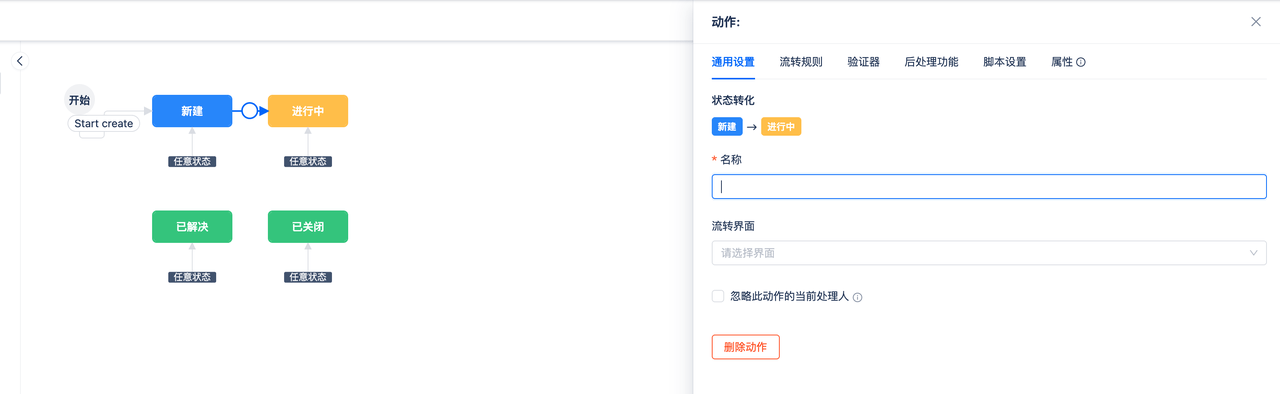
Workflow Transition Rules
When workflow statuses transition, you can set transition rules that must be met for the transition to occur. Settings as shown below:
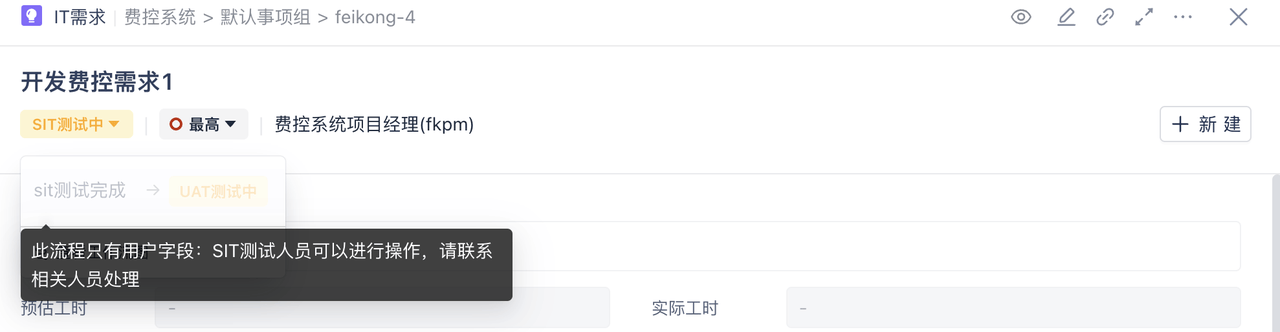
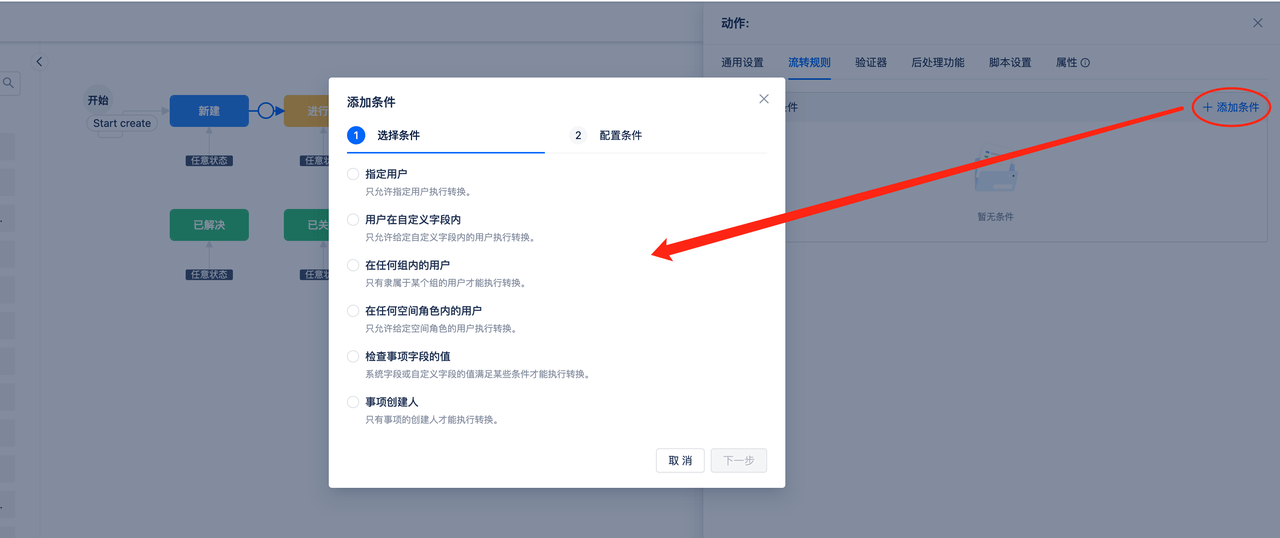 Select the transition action line that needs restrictions, fill in the action line name, transition screen (optional, the screen that pops up during transition), and click [Transition Rules] to set personnel transition rules and field validation rules.
Restrict Transition Personnel:
You can configure users, user groups, user types, space roles, and creators - only these people can perform transitions.
- Users: Reads all users in the system
- User Groups: Reads all user groups in the system
- User Types: Reads all user type fields in the system, including custom and system assignee fields
- Space Roles: Reads all roles from the role list; during transition, it validates whether the user belongs to the corresponding role in the item's space
- Creator: Only the item creator can perform the transition
Conditions between them use "OR" relationship - if any one condition is met, the transition is allowed.
Check Item Fields:
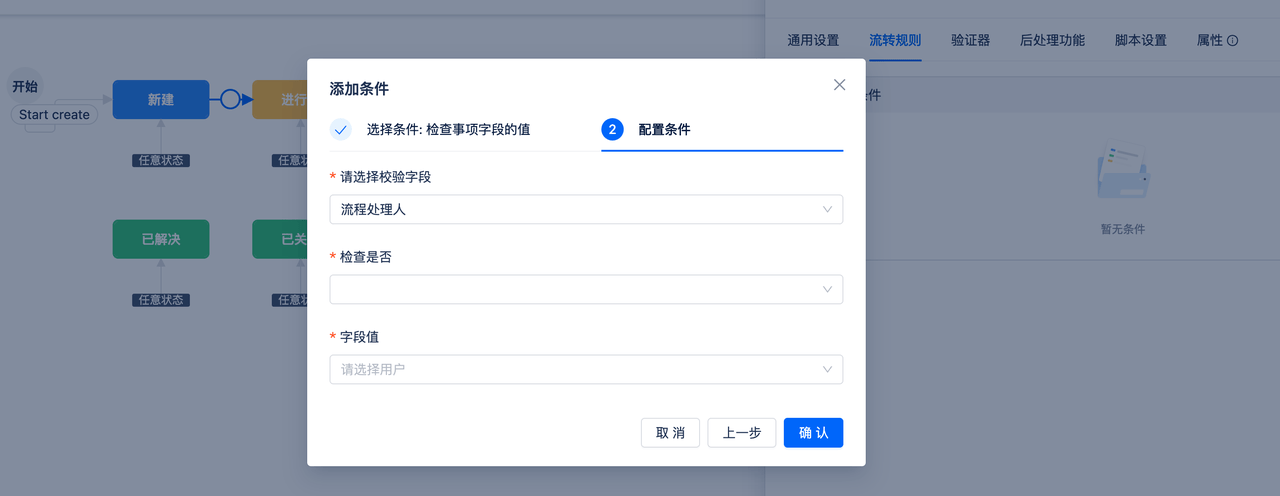 Field scope includes: user type fields (excluding creator), dropdown, radio, checkbox, date, tags, long text, and text. Only when the configured field conditions are met can the transition occur. For example: when urgency level is urgent, transition to manager review; when urgency level is not urgent, it can transition to deputy manager.
Field to field validation uses intersection (all must be satisfied)
Restriction of transition personnel and item fields uses intersection
Workflow Approval
If approval is needed at a certain status node, you can enable approval at that status node and set approvers and approval rules. Supports co-signing, additional signing, and delegation.
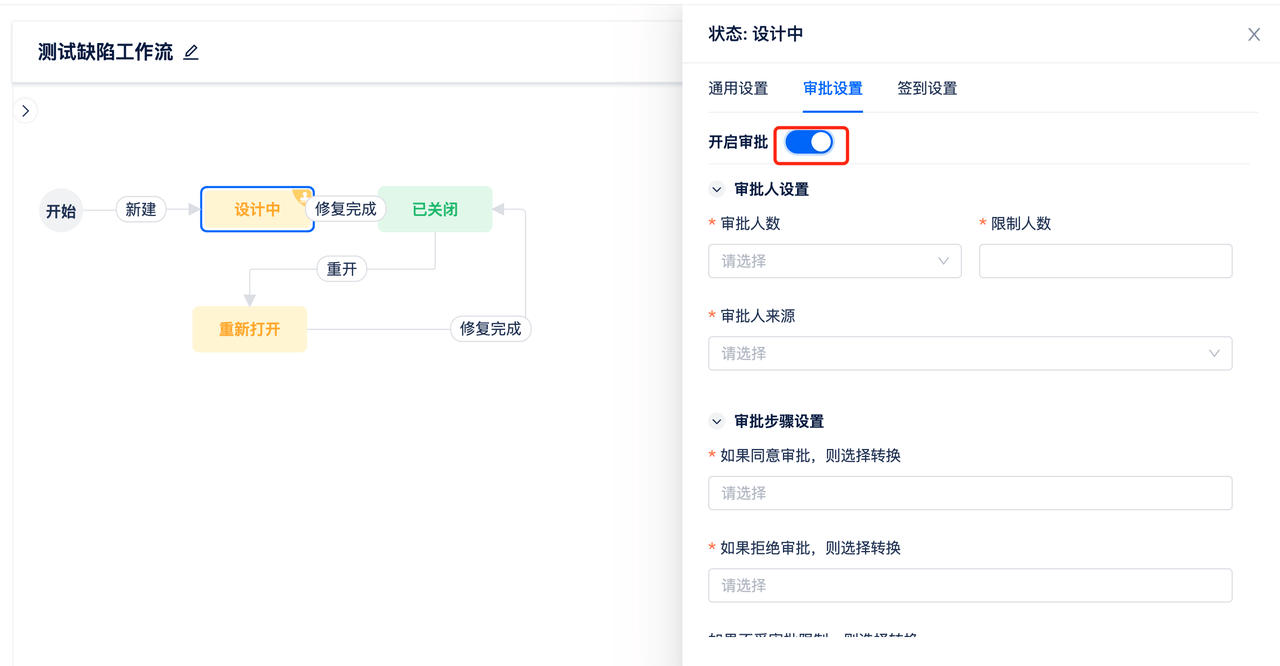 Select the status node, and in the right details panel, click [Approval Settings] to enable approval.
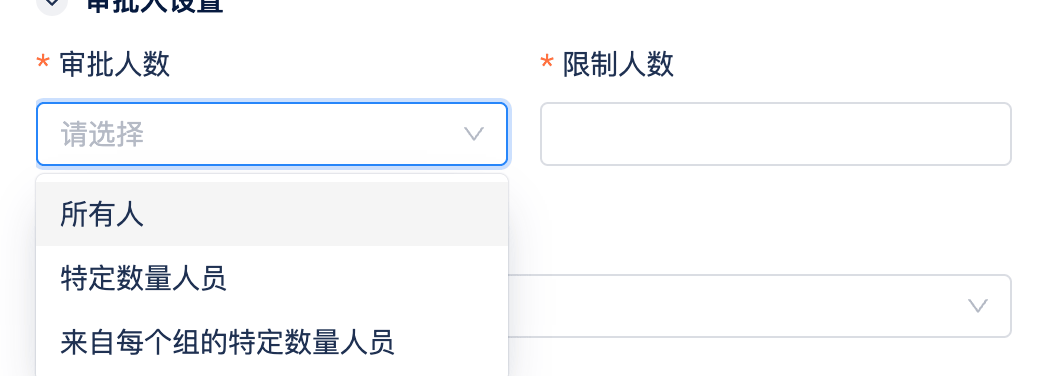
Number of Approvers:
- All people: All people must approve before continuing to the next transition
- Specific number of people: Enter the limited number, e.g., number 2, only 2 people need to approve
- Specific number of people from each group: Only applies when approvers are user groups; each group must have the corresponding number of people approve
Approver Source:
You can select user groups, user type fields, and space roles.

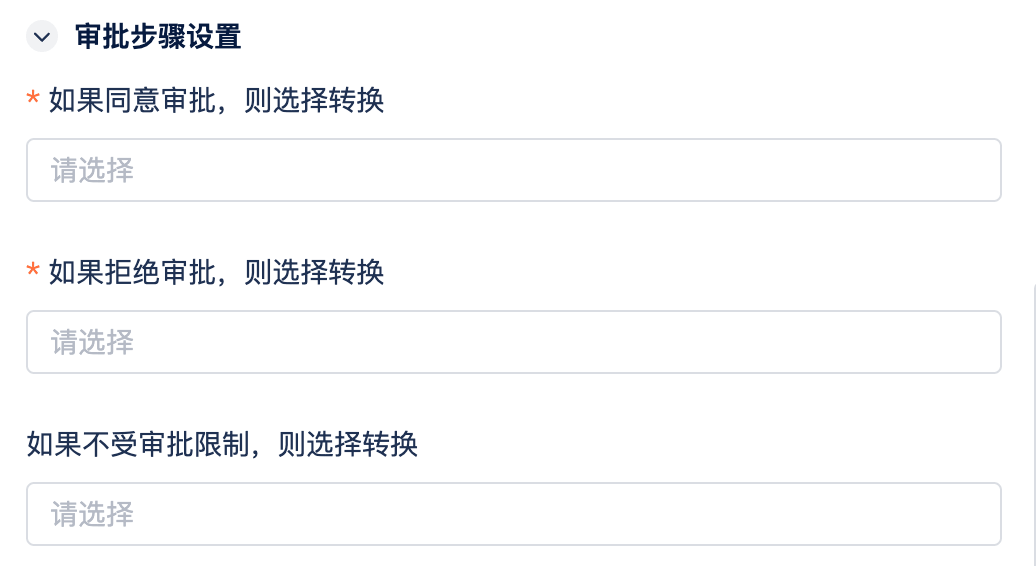
Approval Step Settings:
Configure which status node can be transitioned to after approval/rejection. If approval lines are configured, transitions can only occur after approval. If you don't want approval restrictions, you can configure transition lines in the unrestricted section.
Other Settings:
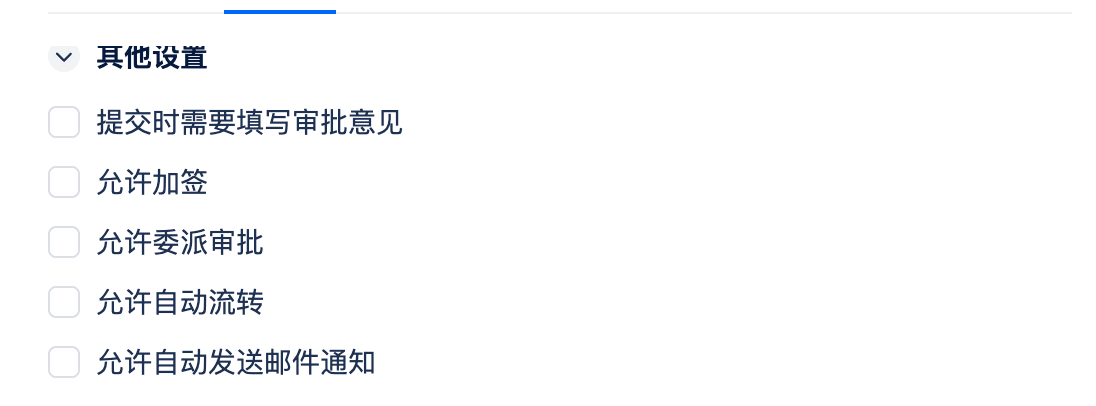
- Fill in approval comments: When selected, comments must be filled in during approval
- Additional signing: When selected, additional signing can be chosen during approval
- Delegation: When selected, delegation can be chosen during approval
- Auto transition: When selected, if approval is approved/rejected, it will automatically transition according to the configured transition, but only when one transition line is configured; if multiple lines are configured, it won't auto-transition
- Auto send email: When selected, emails are automatically sent to approvers when reaching the approval node
Workflow Schemes
Through workflow scheme configuration, add workflows to item types. Workflow schemes can also be applied to specific spaces through space configuration schemes.
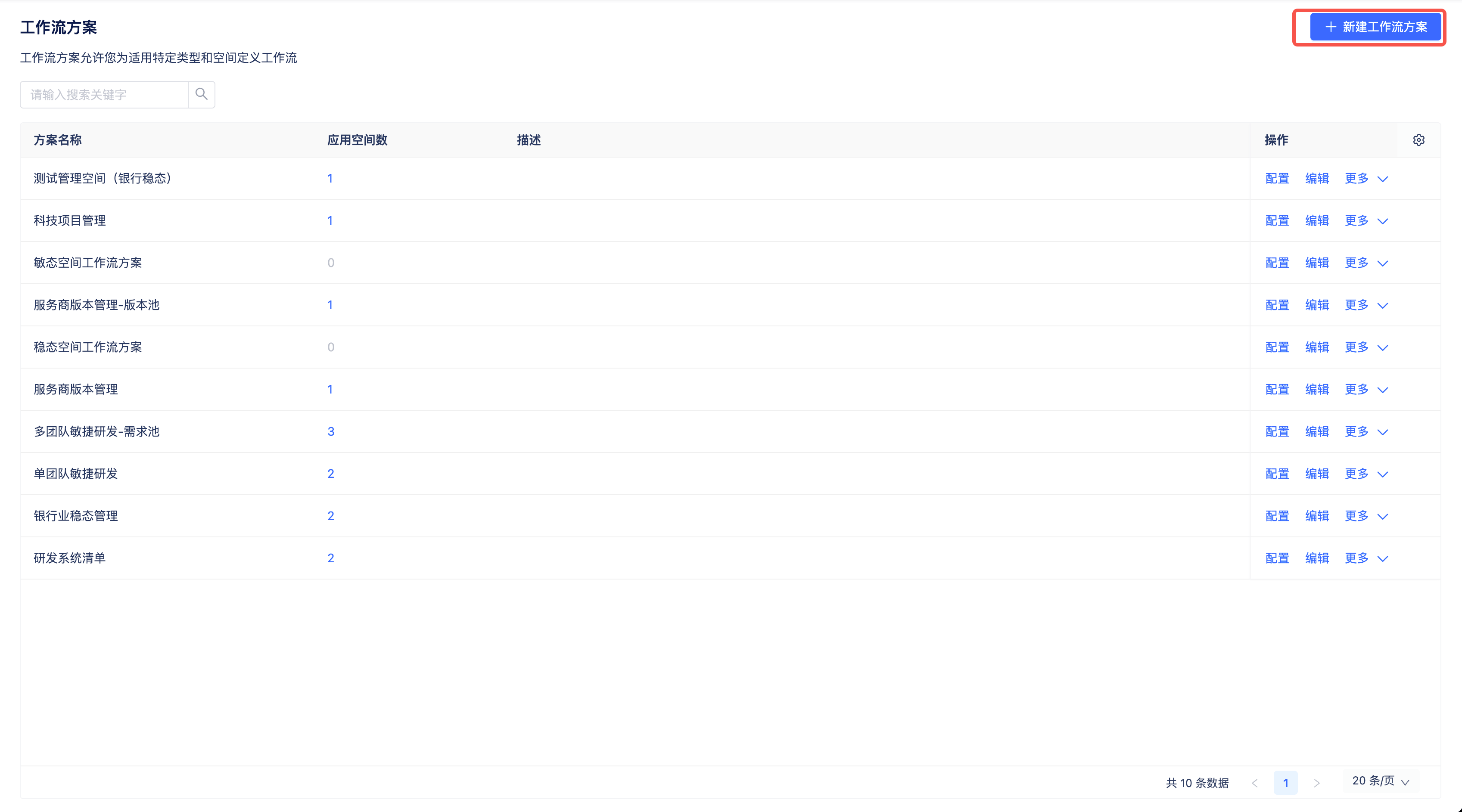
Team Settings - Item Configuration - Workflow Schemes - Create Workflow Scheme
Configure Workflow Scheme
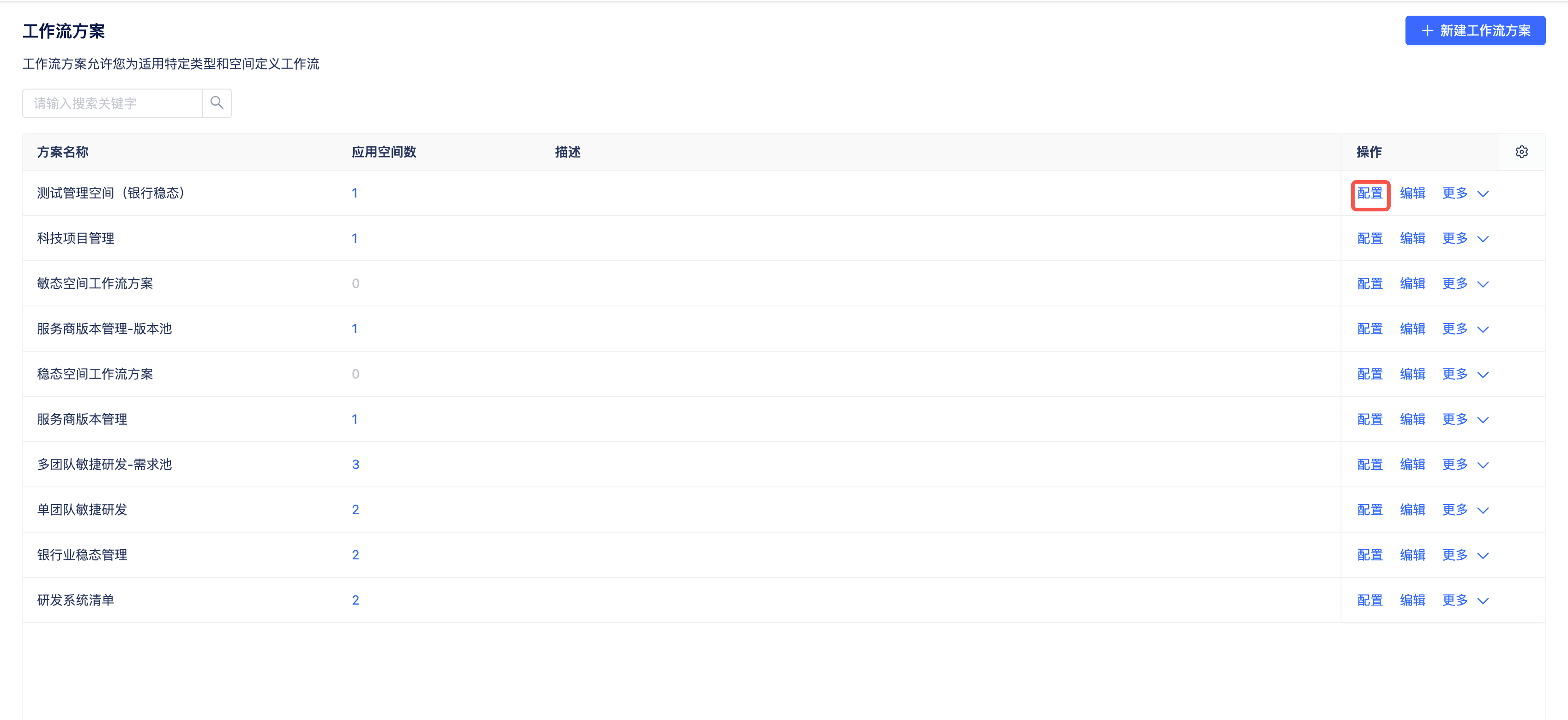

Click [Add Workflow] to select a workflow, then select item types to bind the type with the workflow. If applied types in this space are not bound to workflows, the system default workflow will be used.