Screens and Schemes
Scenario Description
Screens are containers for fields, used to display the layout and logical validation of items. An item has 3 screens: create, edit, and view, and different screens can be configured with different fields.
Generally, it is recommended that one type uses one set of screens, with create, edit, and view using the same screen.
Main Functions
Create screen: The popup page that appears when clicking [Create Item] is the create page
 Edit screen: The popup page that appears when clicking [Edit Item] is the edit page
 View page: The detail page that appears when clicking the item title is the view page
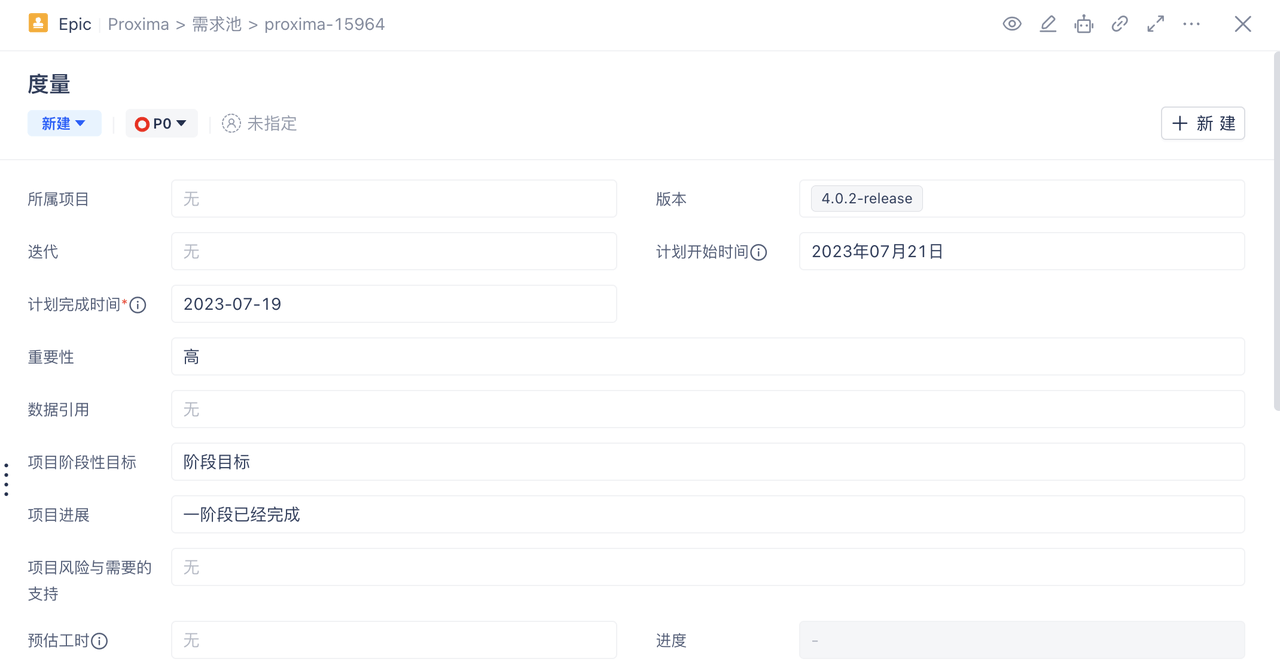
Create/Edit Screen
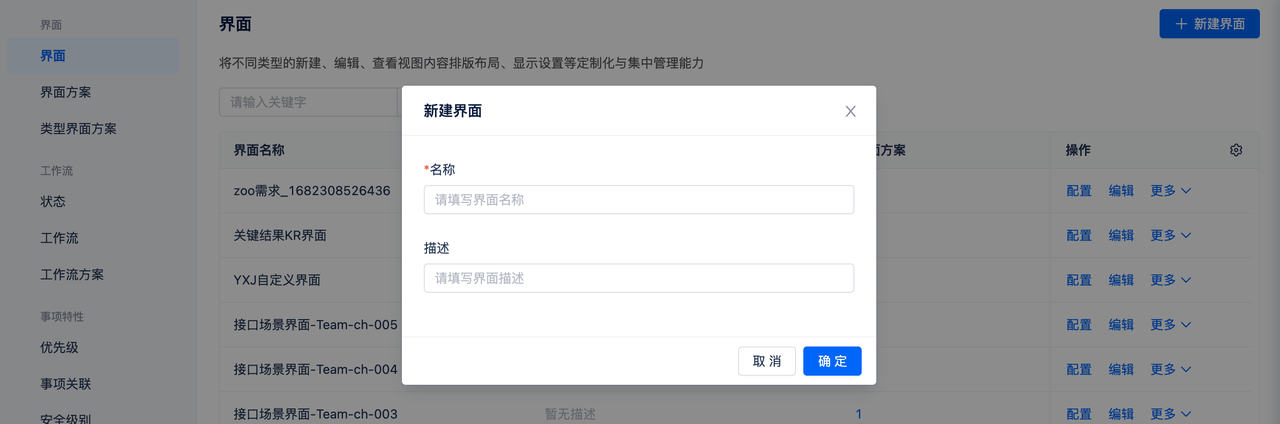
- Click [Create Screen] to fill in relevant information and save
- Name length is limited to 2-100 characters
- Click [Edit] to modify screen name and description
Configure Screen
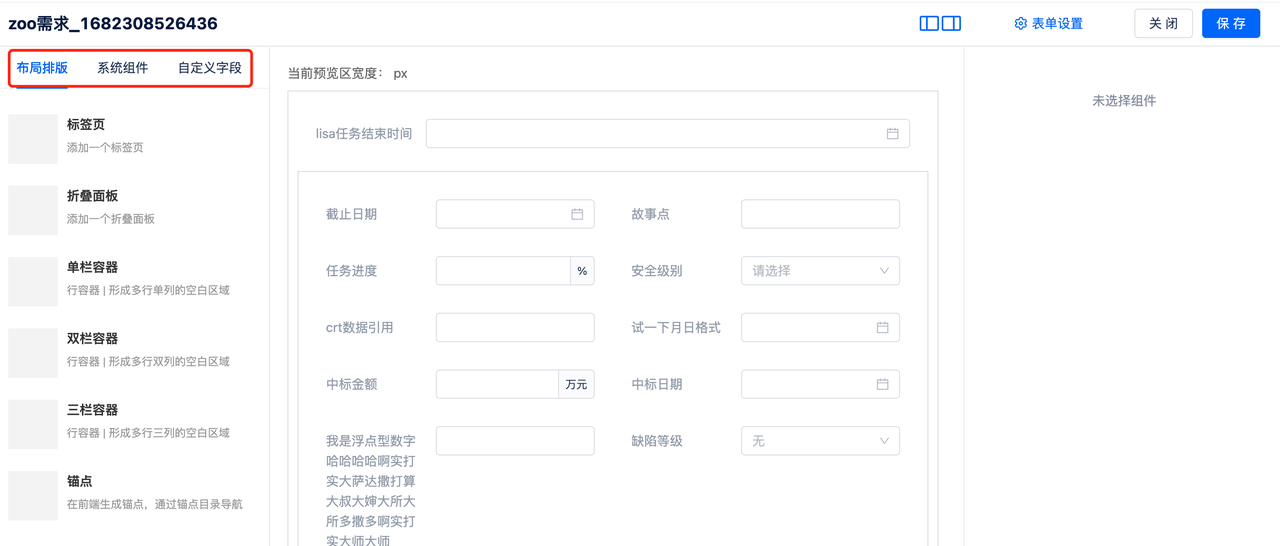
- The page is divided into 3 parts: left, middle, and right. The left side contains screen elements, the middle shows element display styles, and the right side is the configuration area
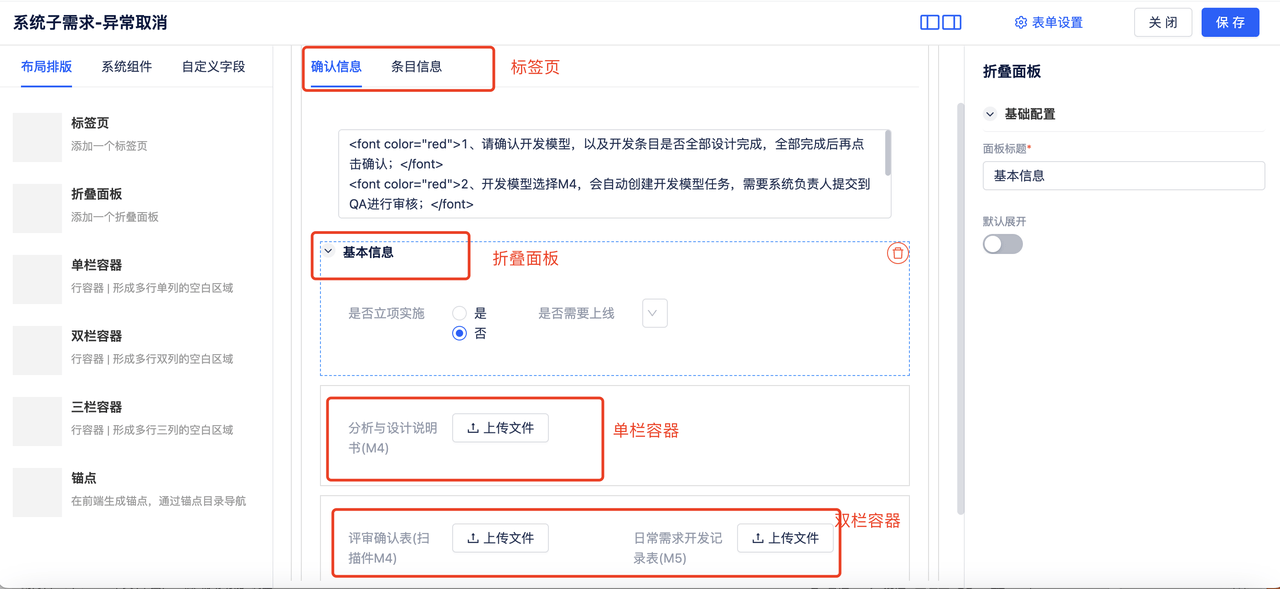
- Layout: Divided into tabs, collapsible panels, containers, and anchors, which can be configured according to business scenarios
- System Components: Built-in system components such as item relationships, item hierarchy, story points, etc.
- Custom Fields: Click [Custom Fields] to display all custom fields, drag fields to the middle display area and arrange them accordingly, and set layout
Screen Scripts
Screen scripts are mainly used for complex scenario validation, and can only be saved when requirements are met
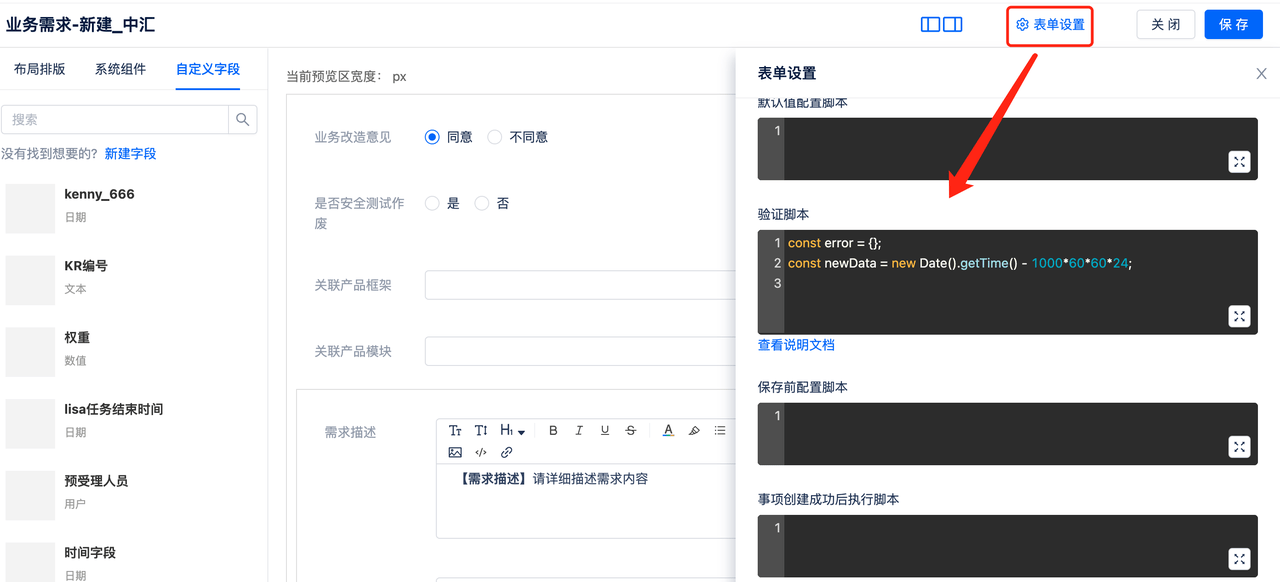 Screen scripts are mainly divided into the following scenarios:
- Default value configuration script: Default display values for fields in the create screen
- Validation script: Mainly performs logical judgment between fields, for example: actual end time must be greater than actual start time, which can be verified through validation script
- Pre-save configuration script: Validation when saving in the create popup, for example, when creating a defect, verify whether the requirement has entered the development completion stage
- Post-item creation execution script: Operations performed after successful item creation, such as sending notifications, automatic task assignment, etc.
Screen Schemes
What is a Screen Scheme?
A screen scheme is a combination of screens, combining configured screens into a scheme to be applied to types
Create Screen Scheme
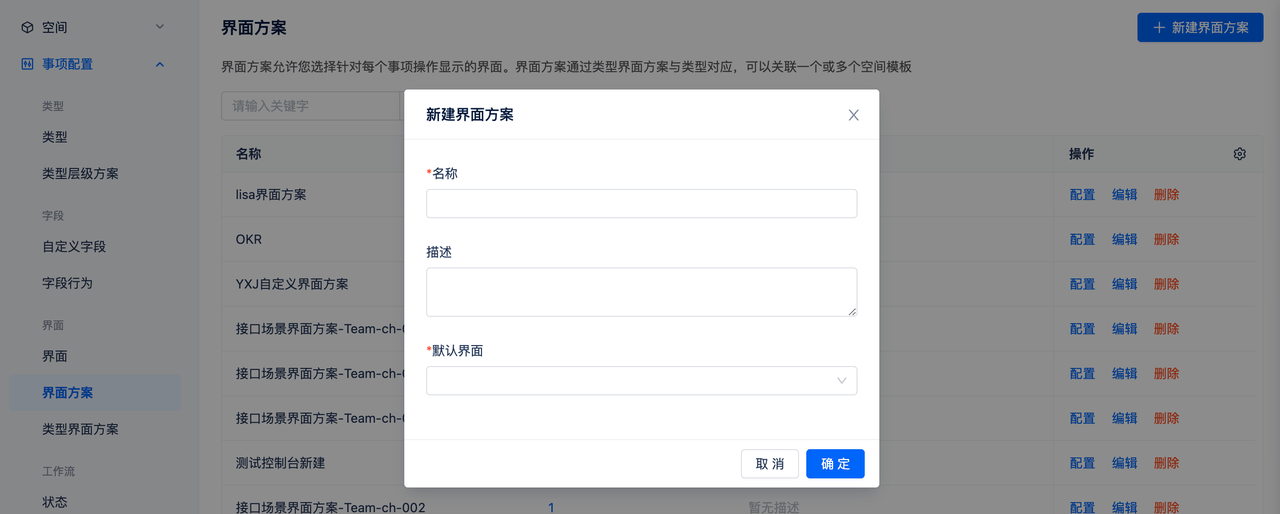
- Name: Screen scheme name, such as Business Requirement Screen Scheme
- Description: Enter description information for quick understanding of scheme content
- Default Screen: After selecting a default screen, the create/edit/view operations of this screen scheme will all use this screen by default. If additional configuration is needed, click configure to modify.
Click configure to select operations and bind them to screens. It is recommended that create/edit/view all use the same screen
Delete Screen Scheme
When deleting a screen scheme, if the screen scheme is already in use, it cannot be deleted
Issue Type Screen Schemes
Purpose: Bind types with screen schemes. After binding, the type's screen will be displayed according to this page
Create Issue Type Screen Scheme
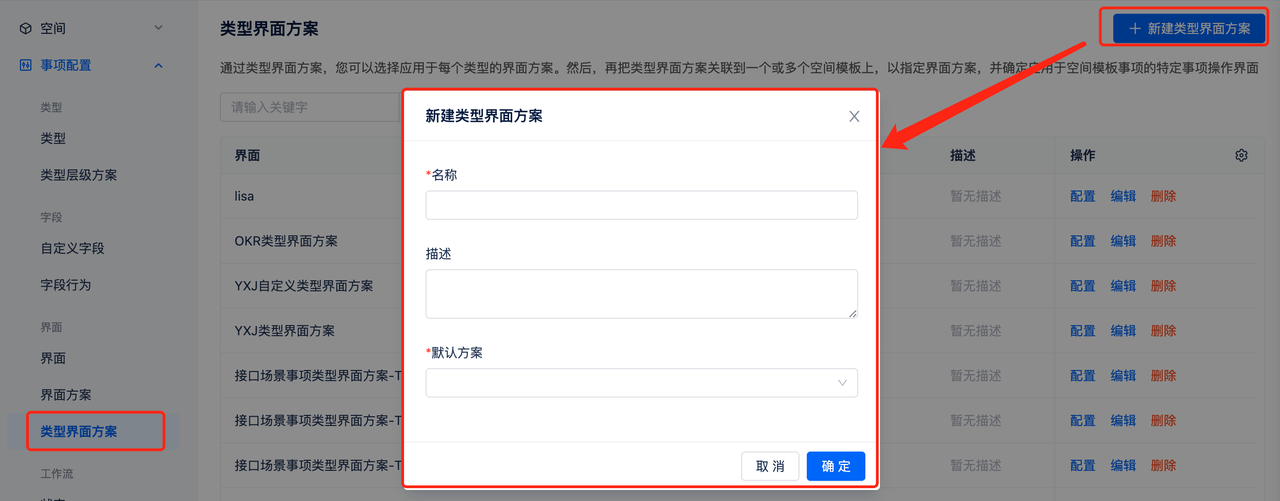
- Name: Issue type screen scheme name, such as Business Requirement Type Screen Scheme
- Description: Enter description information for quick understanding of scheme content
- Default Scheme: Select default screen scheme. All types in spaces that apply this issue type screen scheme will use this screen. If different types have different screen schemes, click configure to set them up
Configure Issue Type Screen Scheme

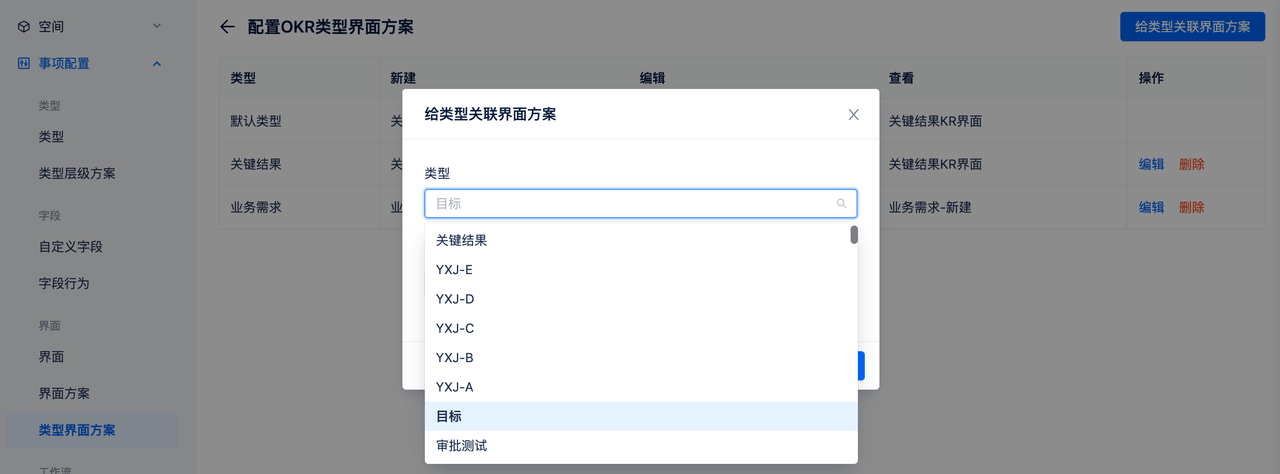
- Click to associate type with screen scheme, select type and then select the bound screen scheme
- After binding, you can edit and delete
Delete Issue Type Screen Scheme
When deleting an issue type screen scheme, if the issue type screen scheme is already used by a space, it cannot be deleted; others can be deleted.