Action Node
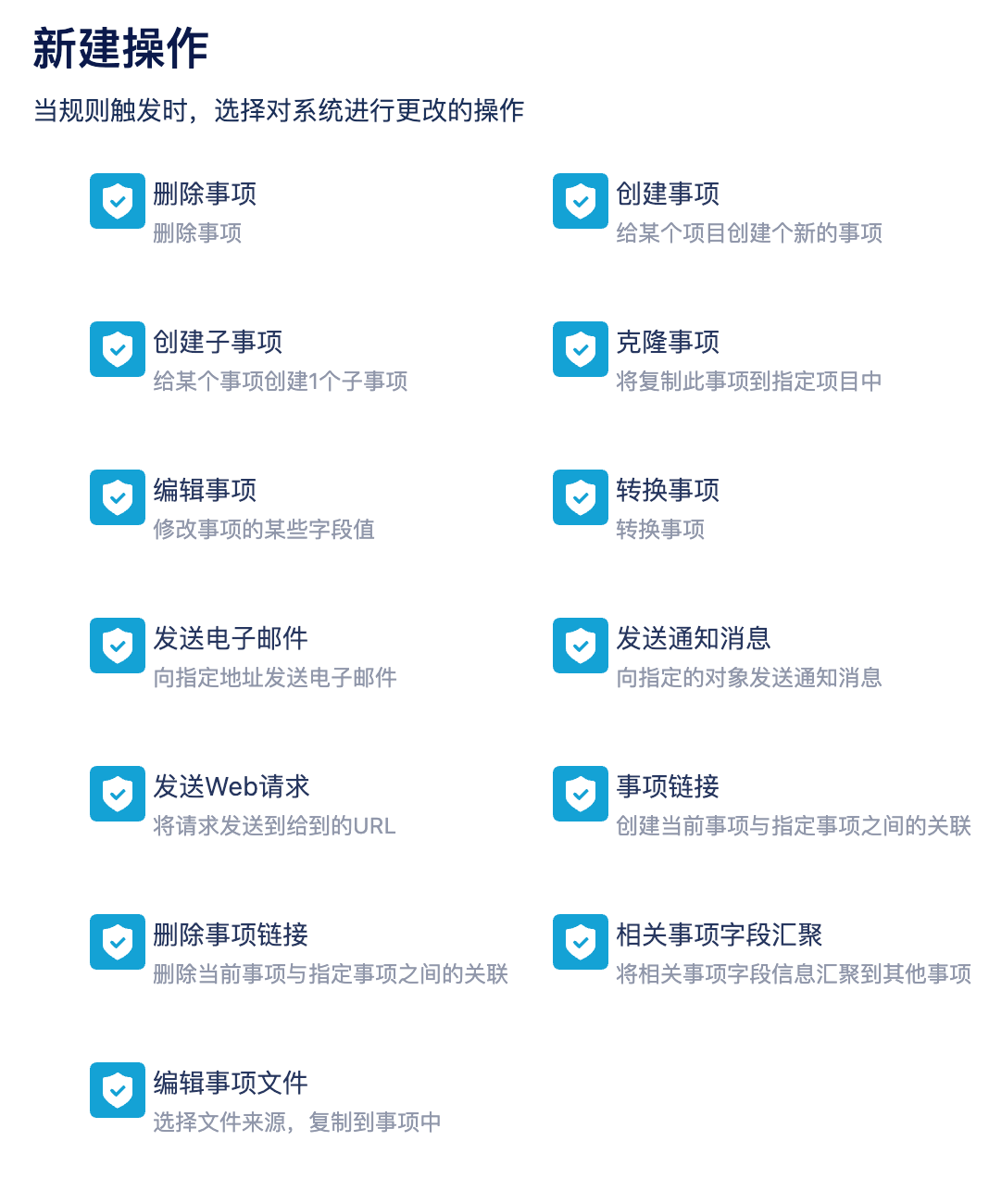
Create Item, Sub-item, Clone Item
When creating an item, it is placed in the current space by default (the space where the trigger item is located), but it can also be moved to other spaces.
During creation, you can copy the current item's field values to the new item, as shown below:
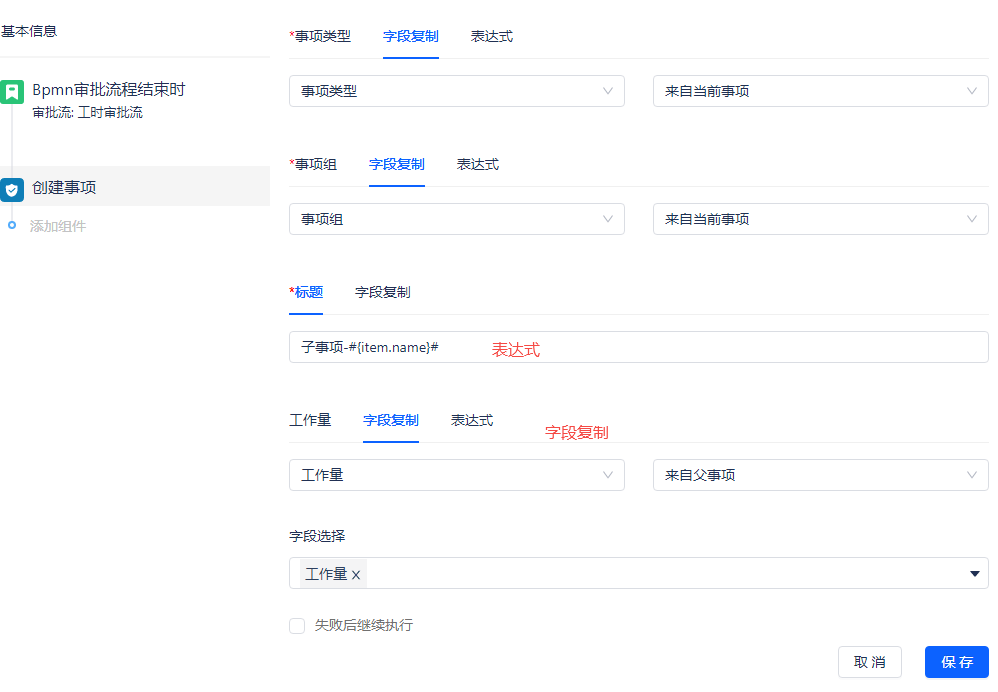
Title: The above image uses an expression. The newly created item's title will be a concatenated string, where #{item.name}# is the title of the trigger item.
Workload: The above image uses the field copy function, which can copy the workload from the trigger item to the new item.
Edit Item
This means modifying the field values of an item.
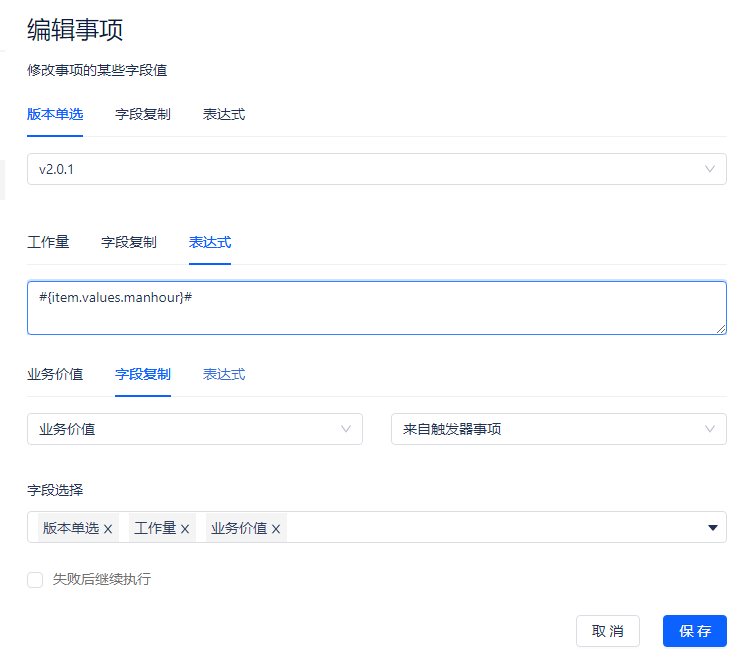
The three fields in the above image use: selected value, expression, and field copy functions respectively.
Transition Item
Item transition is used to change the item status. If filling out forms is required during status transition, it can also be configured in automation, as shown below:

Send Email, Send Notification Message
You can choose to send emails and notifications to specified users, user groups, users selected in user fields, and workflow approval-related users.
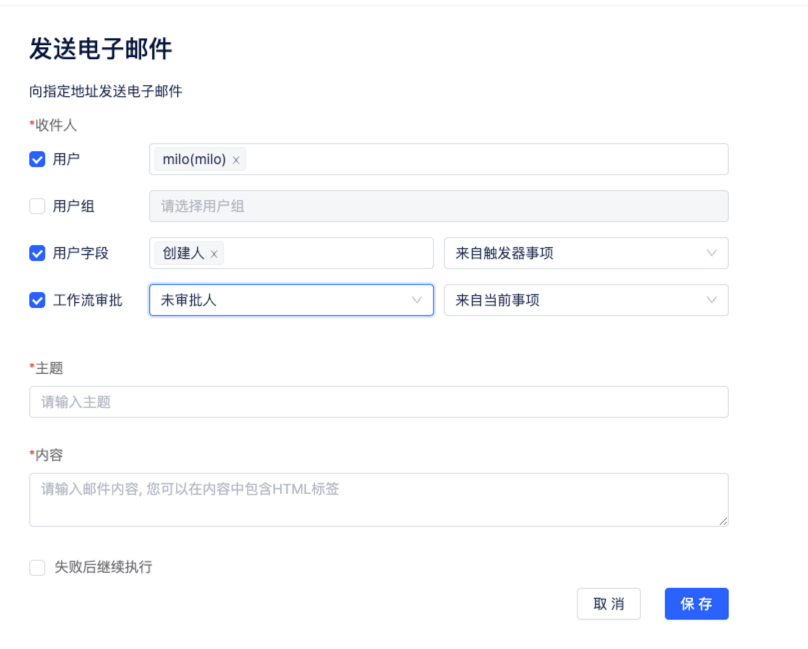
You can use expressions to get item field values and concatenate the subject and content.
Send Web Request
Automation can be used to integrate with external systems:
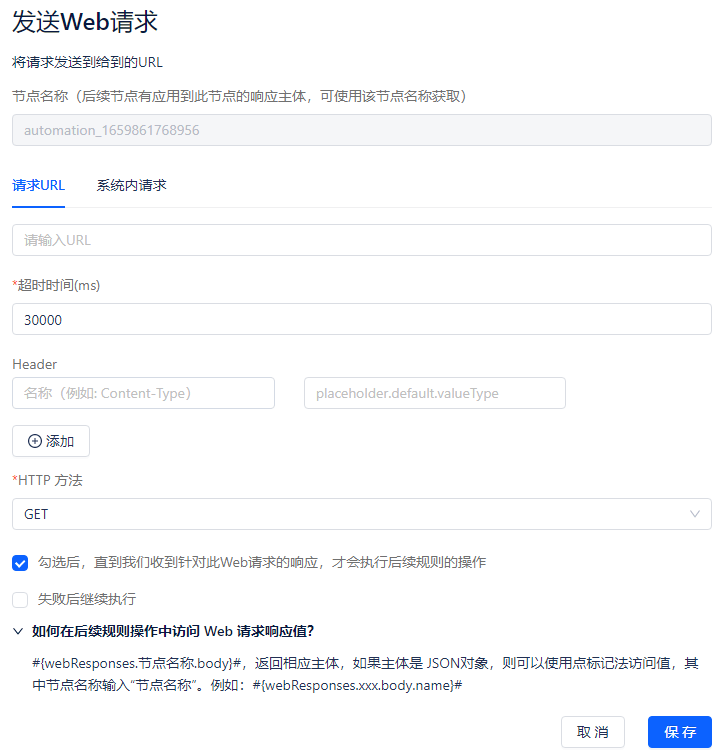
HTTP Method:
- Get: Can use expressions to concatenate URLs
- Post: Only supports JSON format, can also use expressions to concatenate title and content
Internal System Request:
Can extend the value range of expressions, typically used to implement uncommon features.
Node Name:
Multiple web request nodes can be used in one automation rule. Each node has a name, and subsequent nodes need the node name to distinguish the scope of values when using the node's return value.
For example: #{webResponses.automation_1659861768956.body}#
Item Link, Delete Item Link
Link the item with the selected target item.
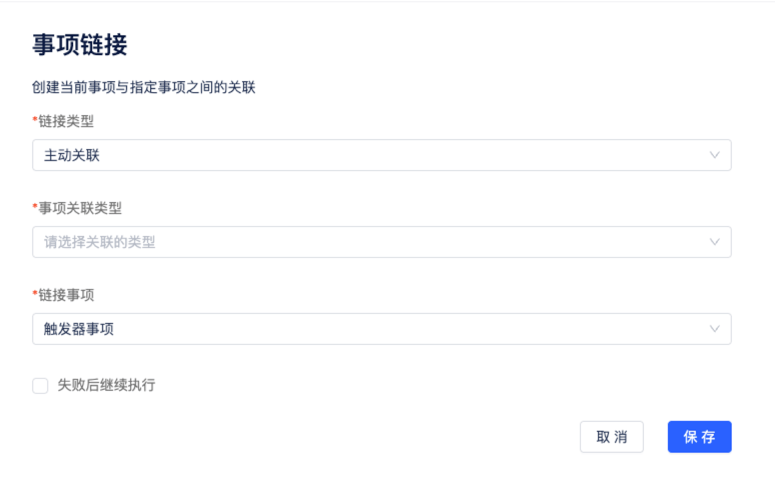
Link Type: Active association, passive association. Active association means the current item is linked to the target item, passive association means the target item is linked to the current item.
Item Association Type: Select the type of item to be associated
Link Item: Trigger item, IQL item, using expressions
Related Item Field Aggregation
This is a highly flexible node used to aggregate values from N items and M fields into a single value. (N, M>=1)
Commonly used for: sum, average, maximum, minimum, etc. It can also concatenate strings and aggregate multiple fields into one field.
The aggregation method is implemented by custom functions, which can use basic JavaScript code (ES6 specification).
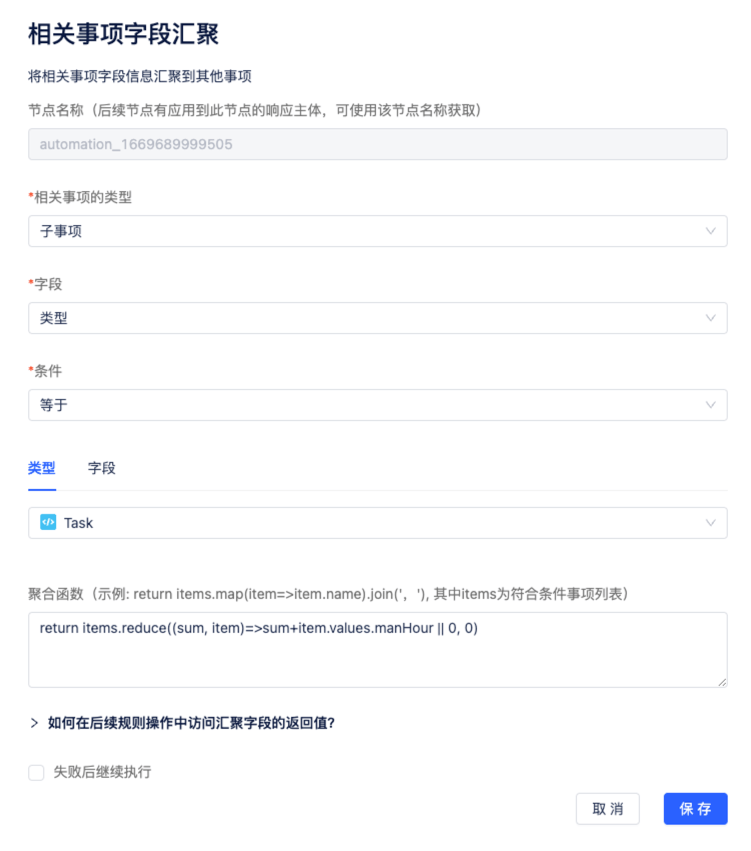
Related Items: See the Branch Rules/Related Items section for details.
Fields, Conditions: Filter conditions for items.
Aggregation Function: Provide a JavaScript script with built-in parameter as item List (items), returning a value that can be: string, number, JSON, array, etc.
The aggregation function in the above image is for total workload:
return items.reduce(
  (sum, item) => sum + (item.values.manHour || 0), // manHour is the workload field
  0,
);
You can also use procedural programming style:
var sum = 0;
for (var item of items) {
  if (item.values.manHour) {
    sum += item.values.manHour;
  }
}
return sum;
You can also add more complex conditional logic in the function.
When you need to use triggers or other expressions, you need to use the built-in function useExpression to interpret expressions
var sum = 0;
if (useExpression('#{triggerItem.values.needManHour}#')) {
  for (var item of items) {
    if (item.values.manHour) {
      sum += item.values.manHour;
    }
  }
}

return sum;
Node Return Value:
Subsequent nodes can use expressions to get the aggregated result, such as:
#{itemCollection.automation_1659861768956.result}#